Signing in
How to sign in or create an account: Continue with Apple, Continue with Google, or an emailed six-digit code. Passwords remain for older accounts only.
Last checked against the live app on 3 September 2026.
Sign in to use INVIA. Every button on the landing page opens the same sign-in sheet, so it makes no difference which one you press.
There is no guest mode, so you cannot open INVIA without signing in, and the landing page is all you see until you do.
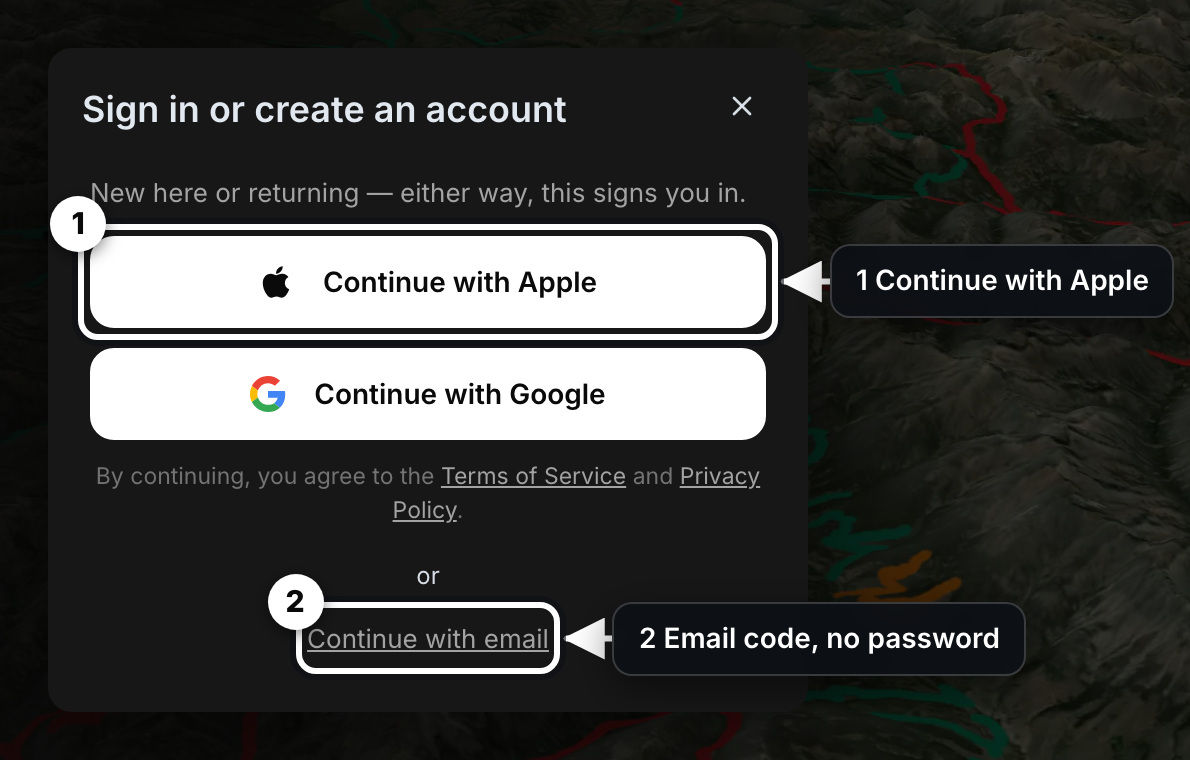
- Continue with Apple
- Email code, no password
Sign in or create an account#
The sheet is headed Sign in or create an account because one sheet does both jobs, so there is no separate sign-up screen to find first. Below the heading it reads New here or returning, either way, this signs you in.
Three ways in:
- Continue with Apple
- Continue with Google
- Continue with email
Text under the buttons says that continuing means you agree to the Terms of Service and Privacy Policy, so pressing any of the three is how you accept both.
Continue with email#
INVIA emails you a six-digit code rather than asking for a password, which means there is nothing to remember and nothing to reset later.
- Press Continue with email. The sheet reads We'll email you a sign-in code. No password to remember.
- Type your email address. Press Continue.
- The sheet changes to Check your email. Below the heading it reads Enter the code sent to {email}.
- Type the six-digit code into the six cells. Press Sign in.
A new email address creates the account on first sign-in, so you do not sign up first and then come back to sign in.
If the code does not arrive#
The Resend code button starts dimmed, so you cannot ask for a second code straight away. It reads Resend code in Ns and counts down from 60 seconds.
- Wait for the countdown to reach zero.
- Press Resend code.
Each code sent to you starts the countdown again at 60 seconds, the first one and every resend alike, because the count matches the wait before a fresh code can be sent. The button therefore comes back at the moment pressing it would produce a new code, and not before.
If a resend does not go through, no new countdown starts, so you can press Resend code again straight away.
The sheet stays on Check your email while you wait and the six cells stay ready, so a code that turns up late still works when you type it in.
If the code is wrong or expired#
The sheet shows That code is wrong or has expired. Request a new one. The six cells clear so you can type again, and your account is not locked.
You stay on the same step, which means you can type the code again, or press Resend code once the countdown has finished.
Going back a step#
| Link | Where it takes you | What it changes |
|---|---|---|
| Use a different email | Back to the email entry step | Clears the code you typed |
| All sign-in options | Back to the three buttons | Nothing on your account |
Passwords#
New accounts do not set a password, because the emailed code, Apple or Google is the way in.
Accounts made before code sign-in can still use one, so Use a password instead sits under the email step and opens Sign in with a password.
That screen carries two links:
- Forgot your password? opens Reset your password.
- Email me a code instead returns to the email step.
To reset a password:
- Open Reset your password.
- Type your email address.
- Press Send reset link.
The sheet closes and the message If that email has an account, a reset link is on the way. appears.
You see that same message whether or not the email has an account, so it is not proof that an account exists. If no email arrives, open the sheet again and sign in with a code instead.
Setting the new password#
Opening the link in that email brings you back into INVIA on a panel headed Set a new password, so the reset finishes in the app rather than in your mail.
- Type the new password into New password. It has to be at least 8 characters.
- Type the same password again into Confirm password.
- Press Update password.
If the two boxes do not match, the panel says Passwords do not match, and if the password is too short it says Password must be at least 8 characters. Nothing on the account changes until both checks pass, so a mistyped second box costs you only the retype.
When the password goes through you are signed out on every device and sent back to sign in with the new one, because signing out everywhere stops an older session carrying on. A message confirms the password was updated, so you know which password to use from now on.
A link that has already been used, or one that has sat too long, brings up This reset link is invalid or has expired. and leaves the password as it was. Send yourself a fresh link from Reset your password, because the old one will not work a second time.
Connected sign-ins#
Apple and Google can be connected or disconnected after you sign in, so you can add a second way into the account or drop one you no longer use. Open Profile, then Edit Profile, then Account settings…, where the rows sit under Connected sign-in.
| What the row shows | What it means | What to do |
|---|---|---|
| Connect Apple or Connect Google | That provider is not connected | Press the link to connect it |
| An email address and Disconnect | Connected, and not the only way in | Press Disconnect to remove it |
| An email address and Only sign-in method | Connected, and the only way in | Connect the other provider first |
INVIA will not let you disconnect the only sign-in method on the account, because doing so would leave you with no way back in. Only sign-in method appears where Disconnect would be, and there is no button to press. Your sign-in keeps working. Connect the other provider, and Disconnect appears on both rows.
Email code sign-in with both providers connected#
Connecting Apple or Google adds a way in and never takes one away, which means email code sign-in keeps working exactly as before when both providers are connected.
Connected sign-in lists Apple and Google and nothing else, so email has no row and no control of its own, and there is no switch anywhere in INVIA to turn code sign-in off.