Connect a Garmin to your browser
Connect a Garmin to INVIA from the browser: File transfer (MTP) or USB drive, the one-time chooser, the file transfer wait, INVIA Bridge on Windows, and the three transports.
Last checked against the live app on 3 September 2026.
The Device page is where a Garmin connects, and the order matters: Connect first, then send.
Press send with no Garmin connected and the route does not reach the device, so INVIA parks the route, opens the Device page, and shows a banner saying the route is queued. The route is still in your library. Connect the Garmin, then press Send now on the banner.
Once a Garmin is connected you can send from the Device page, or from wherever the route lives, because the connection belongs to the browser rather than to one screen.
How to get here#
- Open the Device tab in the nav bar.
- Plug in the Garmin and let it power on.
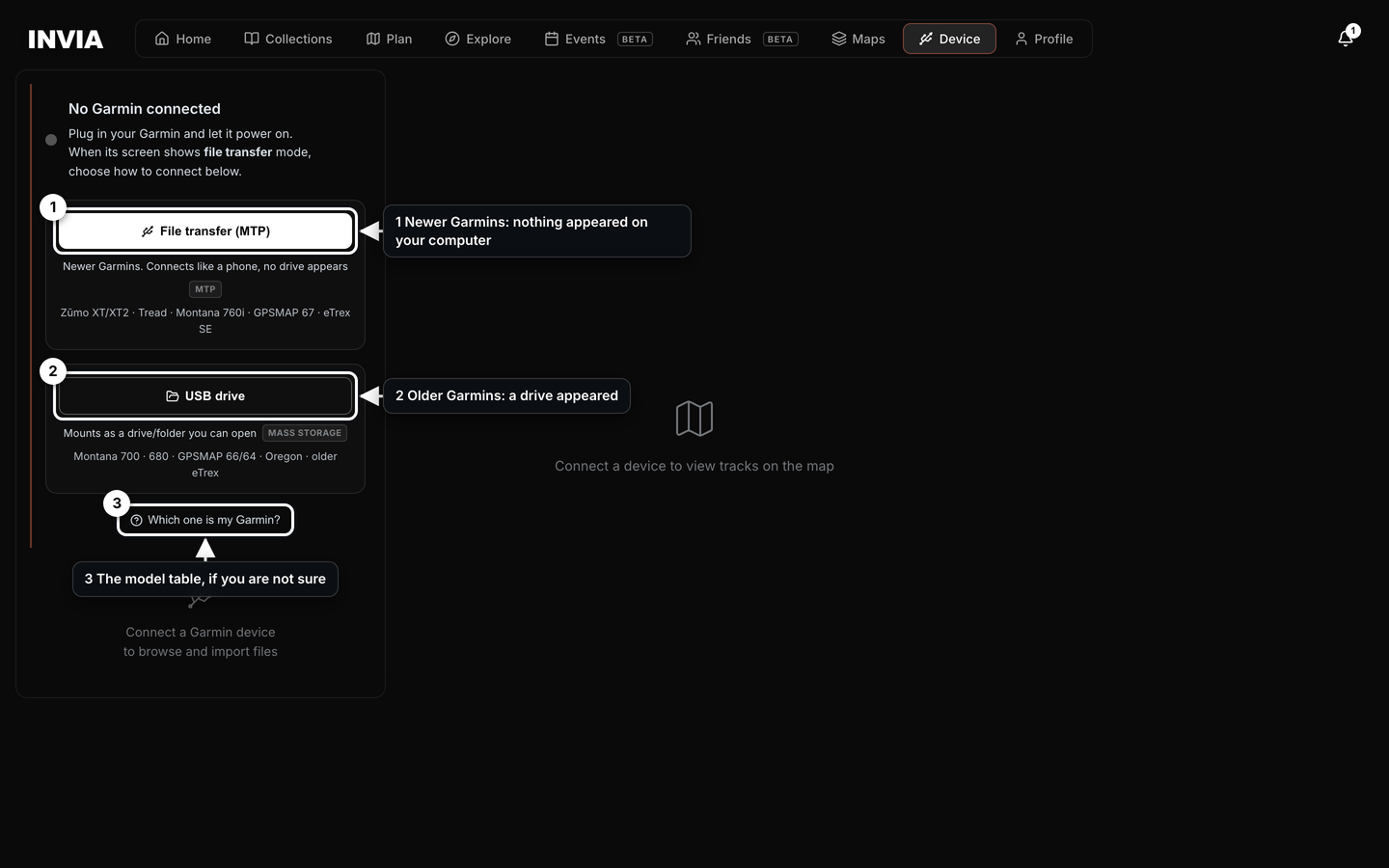
- Newer Garmins: nothing appeared on your computer
- Older Garmins: a drive appeared
- The model table, if you are not sure
The two ways a Garmin connects#
A Garmin connects over USB in one of two ways, and which way yours uses depends on the exact model rather than on how new the Garmin is.
| Press this | What the Garmin does | Models |
|---|---|---|
| File transfer (MTP) | Connects like a phone, keeps running normally, and never appears as a drive on the computer. | Zumo XT, XT2 and XT3, Tread, Montana 710 and 760i, GPSMAP 67, eTrex SE |
| USB drive | Mounts as a drive or folder you can open, like a flash drive. | Montana 700 and 680, GPSMAP 66 and 64, Oregon, older eTrex |
Those two model lists are examples rather than the whole list, because INVIA reads the folder layout from the device itself instead of matching a model name against a list. A Garmin named nowhere on this page still connects.
If you are not sure which way yours connects, press Which one is my Garmin? for the model table. You can also plug the Garmin in and watch the computer, because what appears tells you which button to press.
- A drive or folder appears: press USB drive.
- Nothing appears: press File transfer (MTP).
Connect#
- Choose the connection. The status card reads No Garmin connected, so press File transfer (MTP) or USB drive. If INVIA already recognizes a drive, the card names the device and tells you to use USB drive.
- Let it search. The card changes to Finding your device, with the hint Leave it plugged in. This can take up to a minute. INVIA keeps trying on its own through that minute, so leave the cable alone. If the Garmin's screen asks to enter file transfer mode, tap Yes on the device.
- Pick the device once. When the silent search does not find the Garmin, the card reads Almost there. A browser hands a USB device or a folder to a web page only after you point at it, so this step is where you grant that access. For MTP, press Select my Garmin and choose the Garmin in the browser's chooser. For a drive, press Select my Garmin drive, then click GARMIN in the sidebar of the window that opens (Finder on a Mac, File Explorer on Windows) and press Select.
- Connected. The card shows the device name, a badge reading WebUSB, Bridge or Drive, and a Disconnect button. Everything on the Garmin is read and drawn on the map, so you can see what is already on it before you send anything.
The first connection is the slow one. After that it is automatic.
The first time, the browser has to ask you to pick the device, and the Garmin itself may take up to about 40 seconds to enter file transfer mode. Allow a minute for a first connection. Once you have granted permission, INVIA finds the Garmin on its own every time after that, which means you plug in the cable and it connects with nothing to press.
INVIA waits longer than the minute the hint promises, so leave the cable alone rather than pressing connect again. The Almost there card only appears after about 55 seconds. On a Garmin INVIA has never seen, it stops waiting after about 75 seconds, because more waiting will not help. Once it has seen your Garmin, it keeps trying for two and a half minutes before giving up.
The Almost there card is not first-time-only. It comes back whenever the silent search finds nothing, which is not a sign that the permission you granted was lost.
When a remembered drive needs permission again#
The two connect buttons are replaced by one Reconnect button, with the line One tap to allow access. under it.
This is a browser permission, not a device fault. INVIA does not have standing access to the drive, so the browser asks again before it hands the folder over.
- Press Reconnect.
- Allow the drive in the browser's own prompt.
While INVIA picks a remembered drive back up, the card shows the drive name and Reconnecting automatically…, so do nothing while that runs.
If the silent reconnect gives up, the card reads No device found, with the hint Plug in your Garmin and choose how it connects below. INVIA stopped waiting. The Garmin did not fail. Press File transfer (MTP) or USB drive again, because that starts a fresh search rather than resuming the one that ended.
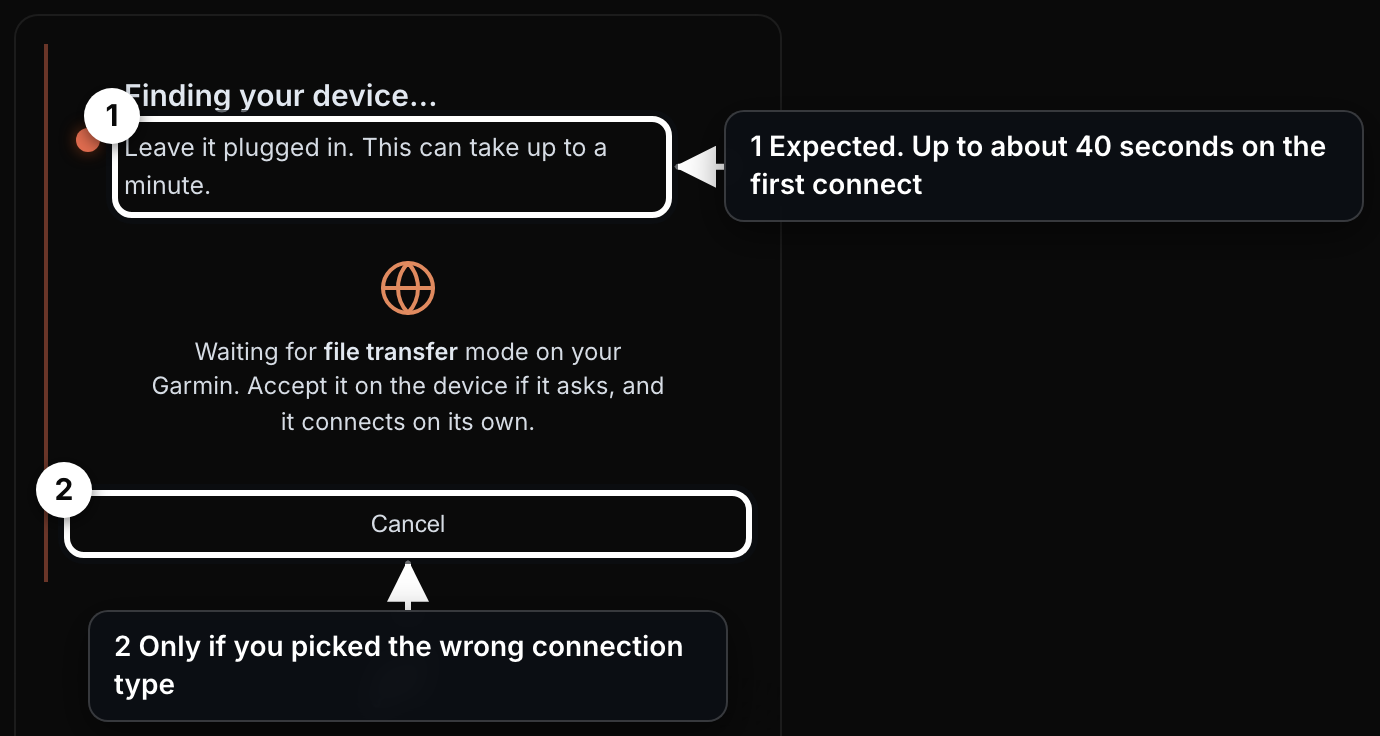
- Expected. Up to about 40 seconds on the first connect
- Only if you picked the wrong connection type
If you pick a folder inside GARMIN#
Picking the Garmin folder inside the drive works exactly like picking the drive itself, so there is nothing to redo.
Picking the GPX folder, or any folder that already holds GPX files, also works. Your tracks are read straight out of it. The device is listed as Garmin Device rather than by its model name, because the model name is stored in a file that sits outside the folder you picked.
Picking anything else brings up That doesn’t look like your Garmin drive yet. Wait for the GARMIN drive to appear, then choose it. The Select my Garmin drive card stays up, so press it again and choose the GARMIN drive.
Give the device a moment#
An MTP Garmin takes time to become ready after the cable goes in, so pressing connect early starts a wait rather than an error. A Zumo XT enters file transfer roughly 20 seconds after connect. Some Garmins switch USB mode to do it, and the screen blanks and relights while that happens. That is the Garmin switching mode. It is not a crash. Leave the cable in. INVIA keeps waiting and retrying through that window instead of failing.
The biggest speed-up is a device setting, not software. In MTP mode the Garmin enters file transfer with no on-screen prompt at all, so the connection no longer waits on you to tap Yes.
- On the Garmin, open Setup.
- Open System, then USB Mode.
- Set USB Mode to MTP.
Windows and INVIA Bridge#
On Windows, install INVIA Bridge, because Windows claims MTP devices with its own driver before a browser can reach them.
INVIA Bridge is a small background app that lets Chrome communicate with your Garmin. It is free, runs on Windows 10/11, installs once, and runs quietly in the system tray, so there is nothing to launch before you connect a Garmin.
When the Bridge is needed, the Device page shows Download INVIA Bridge in place of the connection card, with two steps.
- Download the installer.
- Run the installer.
If Windows shows Windows protected your PC, choose More info, then Run anyway. If the Bridge is already running, press Bridge already running? Click here to connect.
The panel has no close control, because it disappears on its own once INVIA finds the Bridge. The connection card then shows the Bridge badge.
When the installed Bridge is behind, INVIA shows a one-line banner above the connection card: a warning triangle beside the sentence Update your INVIA Bridge for the latest features.
Nothing on it needs pressing, because the banner carries no button, no link and no way to dismiss it. The banner sits above the connection card as a separate strip rather than covering it, which means the Garmin still connects while the banner is showing. The full-screen Download INVIA Bridge panel appears only when no Bridge is installed at all, so an out-of-date Bridge gets the banner and keeps the connection card.
On a Mac nothing extra is required for either connection, because Chrome and Edge reach the Garmin on their own there.
On Windows the Bridge is what makes the connection possible at all, whether the Garmin connects by file transfer or as a drive. The one exception is a drive this browser was already granted permission for in an earlier session, which reconnects on its own.
No desktop software needed#
INVIA is the only web application outside Garmin that sends files to a Garmin over MTP, straight from a browser tab.
Until INVIA, the only software that could put a file onto an MTP Garmin was Garmin's own desktop applications, or a manual copy through the operating system. That tied your Garmin to a computer with the right program installed on it, which is the step the Device page removes.
Three transports, one Device page#
INVIA routes every device action through one of three transports, and the badge on the status card names the live one so you can tell how your Garmin is attached.
| Badge | What it is |
|---|---|
| WebUSB | MTP direct from the browser, on a Mac. |
| Bridge | MTP through the Windows app. |
| Drive | USB-drive Garmins, through the browser's folder access. |
Sending, importing, waypoints and maps work the same on all three, so nothing else in this manual changes with the badge.
Drive Garmins: storage#
A connected USB-drive Garmin also lists what is loaded, Internal and SD Card, so you can see whether the memory card is available before you send to it.
- Add memory card appears when only one storage is loaded, and it opens the folder picker again so the memory card is added as a second storage. Once both are loaded, both come back on their own next time.
- Connect a different Garmin swaps to another Garmin without disconnecting first, because it opens the folder picker directly.
On an MTP Garmin a fitted microSD card appears on its own as a second storage, so there is nothing to add by hand.
Without a computer#
Export the route from INVIA as a standard GPX file. Hand it to the Garmin Tread app or the Garmin Explore app on your phone, because both accept GPX and push it to the device.