Supported devices and troubleshooting
Which Garmin devices work with INVIA and how each one connects, GPX folder paths, microSD behavior, and fixes for every common connection problem.
Last checked against the live app on 3 September 2026.
Find your model in the tables below, then press the matching button on the Device page. The two connect buttons are File transfer (MTP) and USB drive. Pressing the right one first saves you a failed attempt.
If you are not sure which one to press, plug the Garmin in and watch your computer.
- A drive appears on your computer: press USB drive.
- Nothing appears on your computer: press File transfer (MTP).
The connection type comes from the model, not the purchase date, because Garmin still sells USB-drive models like the Montana 700-series alongside MTP-only models. A Garmin bought in 2025 can still be a USB drive.
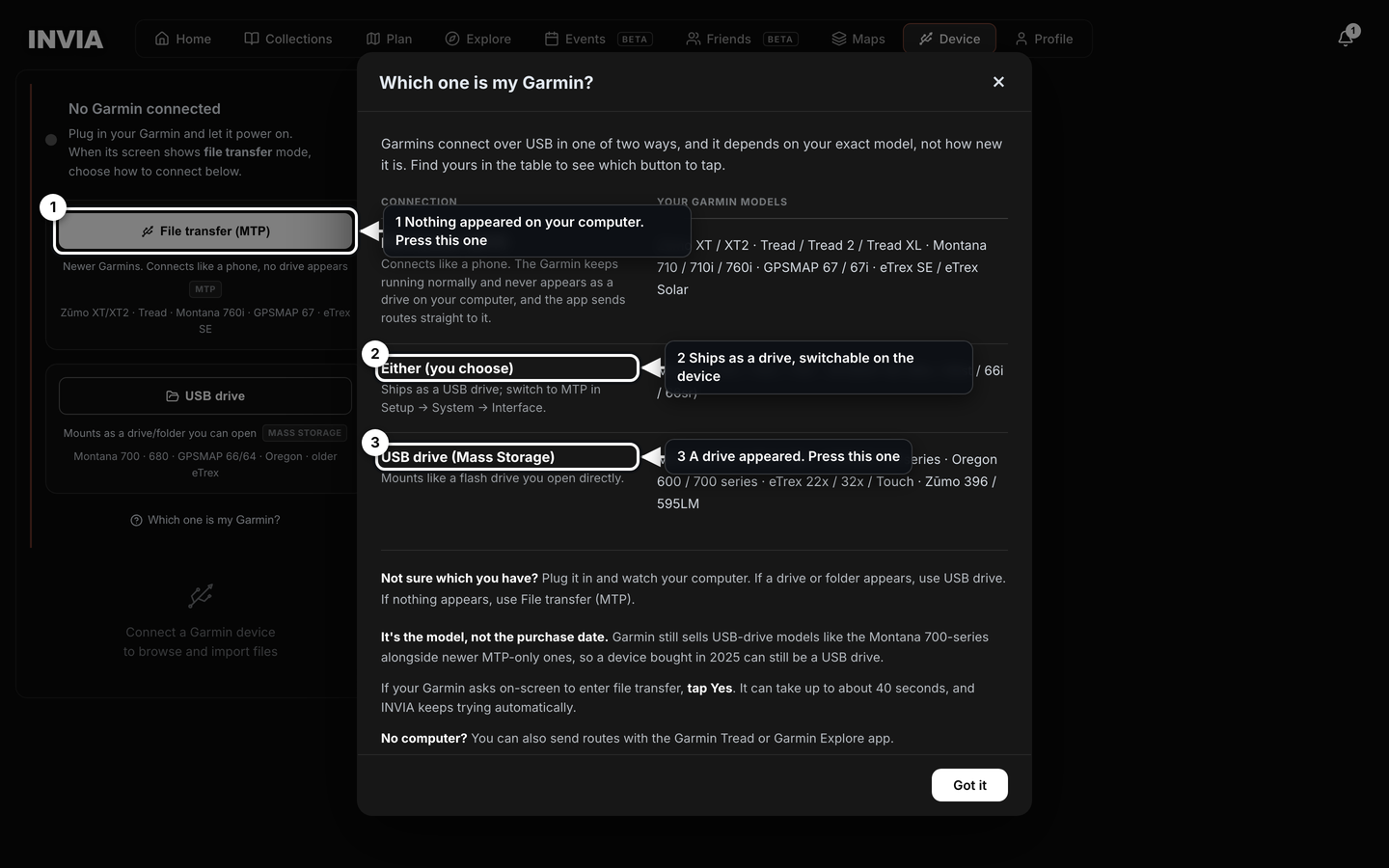
- Nothing appeared on your computer. Press this one
- Ships as a drive, switchable on the device
- A drive appeared. Press this one
Almost any Garmin, not just the ones named#
INVIA connects to almost any Garmin that plugs in over USB. That covers a Garmin that appears as a drive and a Garmin that connects by file transfer. The way your model connects decides which button you press and nothing else.
INVIA reads the folder layout off the Garmin itself rather than working from a fixed list of models. A model that is not named below still connects. It still receives routes.
The tables name the common families because the folder and the connection type change from family to family, so knowing which family you have saves a wrong first guess. The tables are examples, not a limit on what INVIA talks to.
MTP-only: connect with File transfer#
A Garmin in this table never appears as a drive on any computer. Press File transfer (MTP) on the Device page, because nothing shows up in Finder or File Explorer to open. INVIA reaches the Garmin over the cable you already plugged in.
| Device | Type | GPX folder on the device |
|---|---|---|
| Zumo XT, XT2, XT3 | Motorcycle navigator | Internal Storage/GPX |
| Tread, Tread 2, Tread XL (Base, Overland, SXS) | UTV and side-by-side navigator | Internal Storage/GPX |
| Montana 710, 710i, 760i | Handheld, moto-mountable | Internal Storage/Garmin/GPX |
| GPSMAP 67, 67i | Handheld | Internal Storage/Garmin/GPX |
| eTrex SE, eTrex Solar | Handheld | Internal Storage/Garmin/GPX |
Either, you choose#
A Montana 700, 700i or 750i and a GPSMAP 66 series handheld ship in USB-drive mode. Press USB drive on the Device page. That is the mode the Garmin is set to when you take it out of the box.
To use file transfer instead, switch the Garmin to MTP in Setup, System, Interface. INVIA handles both modes, so the choice is yours and neither one limits what you can send.
| Device | Type | GPX folder on the device |
|---|---|---|
| Montana 700, 700i, 750i | Handheld, moto-mountable | /Garmin/GPX/ |
| GPSMAP 66 series (66s, 66st, 66i, 66sr) | Handheld | /Garmin/GPX/ |
USB drive: connect as a drive#
A Garmin in this table mounts like a flash drive you open directly. Press USB drive on the Device page. Your browser asks you to point at the GARMIN drive once, so that it knows which drive it may read.
| Device | Type | GPX folder on the device |
|---|---|---|
| Montana 610, 680, 680t | Handheld | /Garmin/GPX/ |
| GPSMAP 64 series | Handheld | /Garmin/GPX/ |
| Oregon 600 and 700 series | Handheld | /Garmin/GPX/ |
| eTrex 22x, 32x, Touch | Handheld | /Garmin/GPX/ |
| Zumo 396, 595LM | Motorcycle navigator | /GPX/ (internal) or the SD card |
A page for your model#
Each family has its own page, because the folder, the model quirks and the send steps change from family to family. Open the page for your Garmin and follow the send there.
- Zumo XT, XT2 and XT3
- Tread, Tread 2 and Tread XL
- Montana, all generations
- GPSMAP 67, 66 and 64
- eTrex, current and older
- Oregon 600 and 700 series
- Zumo 396 and 595
For the whole picture, start at Garmin and GPX.
Also supported#
Any GPS that reads GPX files can take an INVIA route by export. The cable, the drive and INVIA Bridge are Garmin only. Every other brand takes the route as a file you copy across yourself.
Trail Tech Voyager. Move a route to a Voyager like this.
- Export the route from INVIA as a GPX file.
- Copy the GPX file onto the Voyager memory card.
- Fit the memory card in the Voyager.
- Open the file on the Voyager screen.
The Voyager browses the whole memory card, which means there is no folder to match and nothing to set up. INVIA does not detect a Voyager and never lists one on the Device page, so the memory card is how a route reaches a Voyager.
Memory cards#
A memory card fitted in an MTP Garmin is a second storage inside the Garmin, not a separate drive. No second drive letter appears on your computer. The Garmin presents everything it holds over one file transfer connection, which is why the card is not a drive of its own. INVIA lists internal storage and the memory card together, and the send dialog lets you choose Internal or SD Card.
On a USB-drive Garmin, press Add memory card on the status card so the card loads alongside internal storage.
Without a computer#
You can move a route to a Garmin without a computer. Both Garmin phone apps take a GPX file you share to them, so the phone does the job the cable would do.
- A Tread, Tread 2 or Tread XL accepts GPX through the Garmin Tread app on your phone.
- A handheld such as a Montana, GPSMAP, eTrex or Oregon accepts courses through the Garmin Explore app.
Export the route from INVIA and share it to the app.
Troubleshooting#
Nearly every connection problem is one of the ones below, and each answer matches what INVIA shows on the Device page.
Nothing appeared on my computer#
An MTP Garmin never appears as a drive on your computer. A Zumo XT, Zumo XT2, Zumo XT3, Tread, GPSMAP 67, eTrex SE, Montana 710 or Montana 760i connects by file transfer instead. So does any Garmin you have set to MTP.
You see no new drive on your computer, which is how an MTP Garmin behaves. INVIA reaches the Garmin over the same cable, so the connection works without a drive.
- Open the Device page.
- Press File transfer (MTP).
- The Garmin connects like a phone.
A drive appeared#
Your Garmin is in USB-drive mode. INVIA may already show a hint naming your Garmin and telling you to press USB drive.
- On the Device page, press USB drive.
- In the window that opens, click GARMIN in the sidebar.
- Press Select.
Steps 2 and 3 happen the first time only, because your browser keeps the drive you picked and INVIA reuses that choice, so the Garmin usually reconnects with no dialog at all. There is no need to open a folder inside the GARMIN drive, since INVIA finds the GPX folder itself.
If the browser permission has lapsed, the Device page shows a single Reconnect button with the note One tap to allow access. You press Reconnect instead of going back through the file picker, which returns only if the drive you picked can no longer be used.
My browser cannot connect#
Sending routes to a Garmin over USB works only in Chrome or Edge. They are the only browsers that let a web page talk to a USB device or open a drive. Safari and Firefox cannot, so INVIA tells you the browser cannot connect to the device.
Everything else on INVIA works in any browser, because only the cable needs Chrome or Edge.
Open INVIA in Chrome or Edge and connect there. To stay in Safari or Firefox, export the route as GPX and send it through the Garmin Tread app or the Garmin Explore app.
Still Finding your device#
An MTP Garmin takes a moment to enter file transfer mode. A Zumo XT takes roughly 20 seconds. Some Garmin models blank the screen and relight it while they switch, which is part of the switch rather than a fault.
The Device page shows the hint Leave it plugged in. This can take up to a minute. INVIA keeps trying automatically for up to about 40 seconds, so leaving the cable in is usually all you need to do.
- Leave the Garmin plugged in and wait.
- To skip the wait next time, set USB Mode to MTP in the Garmin settings.
The Garmin then enters file transfer mode without a prompt, so the next connection starts straight away.
The Garmin asks about file transfer mode#
Tap Yes on the Garmin. The Garmin is asking whether to let the computer see its files, and INVIA carries on as soon as you answer.
To stop the question, set Setup, System, USB Mode to MTP. The Garmin then enters file transfer mode on its own every time, so you are not asked again.
Windows shows Download INVIA Bridge#
Windows claims MTP devices with its own driver before a browser can reach them. INVIA Bridge is what gets you past this screen. Bridge is a small free background app that runs on Windows 10/11 and lets Chrome communicate with your Garmin.
- Download INVIA Bridge.
- Run the installer. Setup happens once.
- If Windows shows Windows protected your PC, choose More info, then Run anyway.
- Connect again in INVIA.
Bridge then runs silently in the system tray, so you install it once and connect normally from then on. If Bridge is already running, press Bridge already running? Click here to connect. Update Bridge when INVIA asks, which keeps the connection working.
The browser asked me to pick a device#
That chooser is a one-time privacy step built into the browser. Your browser asks before any web page reaches hardware. Pick your Garmin once, and INVIA then detects it automatically whenever it enters file transfer mode.
On a USB-drive Garmin the one-time step is selecting the GARMIN drive instead.
Browser permission can lapse later, which means INVIA shows a single Reconnect button on the Device page. Press Reconnect to connect again. Your INVIA library and the files on the Garmin are unchanged.
The route is not on the Garmin#
Check the Device page first. After a send, the route file is listed under On Device. Press ↺ Refresh to read the tracks off the Garmin again and confirm the file arrived.
On the Garmin, look under Track Manager, Trip Planner or Tracks, depending on the model. INVIA delivers routes as tracks so the Garmin draws your exact line.
If the Garmin was mid-transfer when you looked, restart it and check the Device page again.
A Zumo XT2, Zumo XT3 or Tread with no memory card fitted behaves differently after a restart, because it takes the track into its own storage and then deletes the route file it read.
- The route still works on the Garmin. You can ride it.
- The route file is no longer listed under On Device.
- Your route is still in your INVIA library. You can send it again.
Fit a memory card in a Zumo XT2, Zumo XT3 or Tread before you send, and the route file survives the restart. Send, step by step.
Montana 700 as a drive#
The Montana 700, 700i and 750i ship in USB-drive mode. Press USB drive on the Device page.
To use file transfer instead, switch the Montana 700 to MTP in Setup, System, Interface. INVIA handles both modes, so either one sends routes.
Montana 760i on Windows#
A known Windows driver quirk stops Windows recognizing the Montana 760i over MTP. You point Windows at the right driver once, and the Montana 760i connects normally from then on.
- Open Device Manager in Windows.
- Select the MTP driver for the Montana 760i manually.
- Start INVIA Bridge.
- Connect again in INVIA.
Everything already stored on the Montana 760i stays there. The driver quirk stops Windows seeing the Montana 760i, so it changes nothing on the Montana 760i and nothing in your INVIA library.
microSD is not a separate drive#
On an MTP Garmin the memory card is a second storage inside the Garmin, not a separate drive. No second drive letter appears on your computer. The Garmin presents everything it holds over one file transfer connection, which is why the card is not a drive of its own. You see internal storage and the memory card listed together in INVIA. The send dialog lets you pick Internal or SD Card.
On a USB-drive Garmin, press Add memory card on the status card. The memory card then loads alongside internal storage, so you can send to either one.
Does importing delete tracks#
No. Importing copies. Your tracks stay on the Garmin after an import. INVIA offers to clear tracks only after it has verified the import, so nothing leaves the Garmin until the copy is confirmed and you say yes.
If verification fails, INVIA keeps every track on the Garmin, so you see them still listed under On Device and can import them again.
Device send limit reached#
A free account has a device-send allowance. A Pro account is unlimited.
When a free account runs out of sends, INVIA shows Device send limit reached and does not send the route. The route stays in your INVIA library, so you can send it again after upgrading to Pro.
The allowance counts sends to the device and nothing else. Connecting, browsing the Garmin and importing from it are never limited.
Still stuck? Export the route as GPX, then hand the file to the Garmin Tread app or the Garmin Explore app on your phone, because both apps push GPX to the Garmin without a computer.