Home overview
Home is your library: the stats header, the sidebar file tree, search and sort, cards, the item page, and how deleting works. Everything you build or import lives here.
Last checked against the live app on 7 September 2026.
Everything you build or import is in one place, so you never have to remember which part of INVIA a route went into. Every route, ride, collection, tag and waypoint is in Home, which is a sidebar on the left and a card grid on the right. Clicking a section in the sidebar filters the grid beside it, so you can narrow the whole library down to one group without searching.
The numbers at the top#
Four cells sit above the grid:
- Lifetime
- This year
- This month
- This Week
Those four cells count your own riding, so the sample rides that came with a new account are left out of all of them. The four cells can therefore read lower than the number of rides in the grid, because the grid shows the sample rides and the cells do not. The sample rides are still in your library. Each sample ride card carries the same actions as any other ride card, so you can delete one to take it out of the grid. The four cells do not change when you do, because they never counted it.
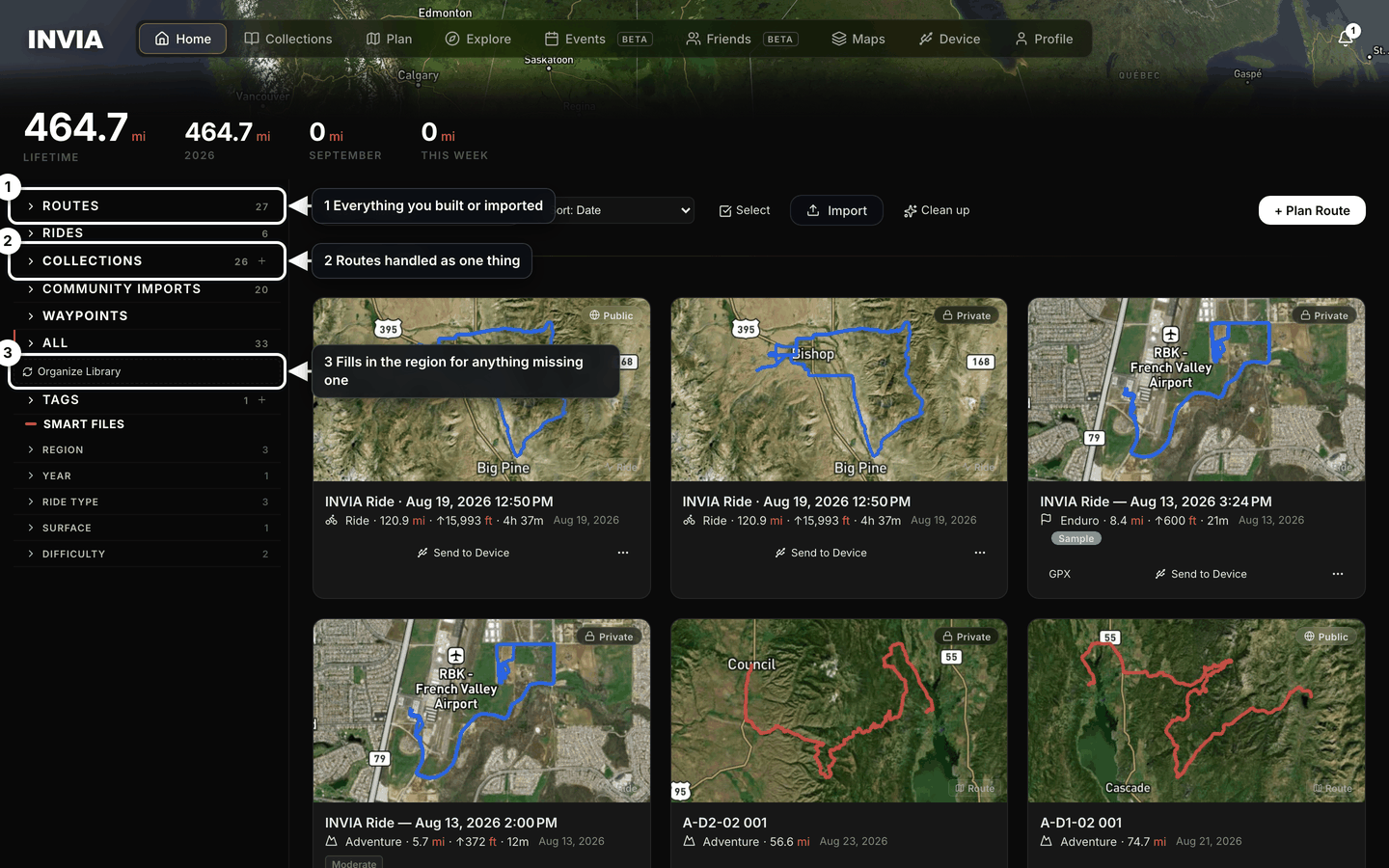
- Everything you built or imported
- Routes handled as one thing
- Fills in the region for anything missing one
The file tree#
The sidebar files your library into sections, so you can reach a whole group of items without naming any of them.
- Routes and Rides: a count and a list. Expand an item to see its waypoints.
- Collections: create one inline, rename it, delete it, or expand it to its members. Click one to filter the grid.
- Community Imports: routes and rides you saved from other riders, filed apart from your own work.
- Waypoints: Open waypoint map. How waypoints work.
- All: everything together.
- Organize Library (Pro): fills in the region for any item that lacks one, so region filters cover the whole library. The row is in the sidebar only while some of your items still lack a region, on Free and on Pro alike.
- Tags: create, rename and delete a tag. A tag's count matches what clicking the tag shows.
- Smart Files (Pro): filters that combine. Region, Year, Ride type, Surface (Paved, Mixed, Dirt) and Difficulty (Easy, Moderate, Hard). They index the whole library rather than only what is loaded, so a filter reaches items you have not scrolled to.
Organize Library and Smart Files without Pro#
Both rows stay where they are when the Pro limits are in force, so a Free account can see what Pro adds rather than hunting for a control that has gone missing.
Organize Library is dimmed, with a lock and a Pro tag on the row. Pressing it organizes nothing and says Organize is a Pro feature. along with a way through to the plans, because a greyed row here is a plan limit rather than a fault.
Smart Files loses its heading and its list of filters, and a single locked line takes their place, reading Smart Files filters are a Pro feature. with the Pro price beside it. Pressing that line opens the plan picker, and everything else in the sidebar keeps working, so Routes, Rides, Collections and Tags still narrow the grid as they did before. Plans.
A route saved from another rider#
A route or ride you saved from another rider goes into its own section rather than mixing with your own work. The item is under Community Imports, not under Routes or Rides. It is still in the All list with everything else, and still a card in the grid, so nothing about it is hidden from you.
Community Imports is kept apart so you always know what is yours to export. Read that section before you export a file.
An item with no region#
A region filter reaches only the items that carry a region, so an item that arrived without one drops out of those results. Region filters do not list the item. A Region Smart File does not list it either.
The item is not lost. It is still under Routes, Rides or Collections, and a card in the grid with its usual actions, so you can open it and use it as normal while region filters ignore it. To bring it back into the filters:
- Press Organize Library in the sidebar (Pro). It fills in the region for any item that lacks one.
- Apply the region filter again.
Without Pro that row is locked rather than absent, so pressing it opens the plans instead of filling anything in, and the item stays usable everywhere apart from region filters.
Search, sort, select#
Search library... searches by name, so typing part of a name is the quickest way to one item you already know.
Sort the grid four ways. The sort you choose changes how the cards are grouped as well as the order they run in.
| Sort | What the grid does |
|---|---|
| Date | Groups cards by month. A This Week group sits on top. |
| Recently imported | Groups cards by month. A This Week group sits on top. |
| Name | Orders cards by name. |
| Distance | Orders cards by distance. |
Select turns on bulk actions, so you can act on many items at once instead of opening each card:
- GPX
- Device
- Add to Collection
- Tag
- Remove
- Delete
Remove appears only while you are inside a collection, because it takes an item out of that collection rather than deleting it, and outside a collection there is nothing to take it out of. To use it, open the collection first, then select the items and press Remove. Collections in depth.
A collection made from a multi-track file#
A collection created from a multi-track file is stowed, so it takes one card in the grid instead of one card for every track it holds. A file with many tracks then leaves room for the rest of your library.
The collection's members are not separate cards in the grid, so you reach them by opening the collection rather than by scrolling for them. The collection's members are listed inside the collection. Search still reaches them there, and a result found inside carries the collection's chip, which tells you which collection it came from.
The card#
A card carries enough to tell one route from another without opening it, top to bottom:
- Thumbnail.
- A tappable visibility pill.
- A Ride or Route badge.
- The name, with a rename pencil.
- Activity, distance, climb and duration, on rides.
- A relative date.
- Chips for difficulty and surface.
- The collection the item lives in.
- Tags.
Card actions are GPX, Share and Send to Device. The card menu holds Add to Collection, Add Tag and Delete, so the everyday actions are on the card and you only open the item page when you want the full view. The card in depth.
The item page#
Open any card for the full view, which is where the map, the numbers and the community sit together.
The top of the item page:
- The map, with the line and its elevation profile.
- Pin, which pins the item to your profile.
- Edit in Builder on your own item, or Import to Library on another rider's.
- The color bar, the title and the badges.
- Who built it.
- Imported from, shown when the item came from another rider.
Below that:
- Stats. Distance, climb and estimated time on routes. Moving time, max and average speed on rides.
- The community panel. Favourites, difficulty votes and comments.
- Your own rating block.
- The surface.
- The Waypoints disclosure.
- Tags.
- The collections the item belongs to.
The action row holds Share, Make Private or Make Public, Export GPX, direction arrows Forward or Reverse, Send to Device and Delete. The item page in depth.
Deleting#
Every delete confirms with This can't be undone, because there is no step afterwards that brings the item back.
Deleting a route or ride#
- Press Delete on the card menu, or Delete on the item page.
- Read the confirmation.
- Confirm.
Before the route or ride goes, INVIA moves its named waypoints into any of your collections that hold it, so a place you marked outlives the route that carried it. A named waypoint is not deleted with the route.
After you confirm, the route or ride is no longer in the card grid and no longer under Routes or Rides. Its named waypoints are still listed in each collection that held it. Every collection that held the route still opens, so the waypoints along the way are still yours to use.
A delete cannot be undone. Rebuild the route in the builder, or import the file again.
Deleting a collection from Home#
The confirmation asks Delete "{name}"? and states that the collection's items are not deleted, because deleting a collection takes away the grouping rather than the routes, rides and waypoints inside it.
After you confirm, the collection is no longer under Collections. Its items are back in your library. They are cards in the grid again, filed under Routes and Rides as they were before you grouped them.
The collection itself is gone, and that cannot be undone. To put the same items back together, create a collection in the sidebar and use Add to Collection on the items you want in it.