How to send a GPX file to a Garmin
Plug the Garmin in, connect it on the Device page in Chrome or Edge, then send. The GPX folder for every model, and the alternatives.
Last checked against the live app on 4 September 2026.
Plug the Garmin in, connect it on INVIA's Device page in Chrome or Edge, then send. Use a USB data cable. INVIA writes the GPX file into the GPX folder on the storage you chose, so you never have to go looking for that folder yourself. Press ↺ Refresh after the send and INVIA reads the Garmin back, so you can see the file arrived before you unplug. This works on Garmins that mount as a USB drive and on Garmins that never appear on your computer.
Send a GPX file to a Garmin#
- Plug the Garmin in with a USB data cable and let it power on. A charge-only cable carries power and no data, so the Garmin never prompts for file transfer.
- Open the Device page in Chrome or Edge. Sending routes to a Garmin over USB works in those two browsers only, because no other browser lets a web page reach a USB device.
- Choose how it connects. Press File transfer (MTP) if nothing appeared on your computer when you plugged the Garmin in, or USB drive if a drive or folder appeared. If you are not sure, press Which one is my Garmin? for the model table.
- Wait up to about 40 seconds. Accept the prompt if the Garmin asks to enter file transfer. INVIA keeps trying on its own, so leave the cable alone while the card reads Finding your device….
- Pick the Garmin once. The first time only, the card reads Almost there. Press Select my Garmin →, or Select my Garmin drive → on a USB drive Garmin, then choose the Garmin in the window that opens. That choice is remembered, so INVIA reconnects on its own after that.
- Choose what to send. Two buttons appear once the Garmin is connected. From computer loads a GPX file from your disk, and From INVIA picks a saved route, ride or whole collection. Either button draws the line on the map before it sends, so you can check you have the right one.
- Press Send to device on the bar that reads Import {name} · {details} to your device?.
- Watch it land. The GPX file appears under On Device as soon as the send succeeds, then press ↺ Refresh to read the Garmin back, because a refreshed list is the Garmin's own answer. A send removes nothing already on the Garmin. There is nothing to eject, so unplug once the refreshed list shows the file.
Sending from the rest of INVIA#
You do not have to start on the Device page. A route open in the builder has Send to Garmin, and a saved route or ride has Send to Device, so you can send from wherever the route already is. Both open the SEND TO DEVICE dialog, which does three things.
- Shows the name of what you are sending, so you can catch the wrong one before it goes.
- Offers Internal or SD Card when a memory card is fitted.
- Sets Directional arrows to Off, Forward or Reverse.
Press Send, then wait for SENT.
With Directional arrows set to Off, INVIA checks your saved waypoints on the way through, so a fuel stop or a camp you marked earlier can travel with the route. When any sit within 750 meters of the line, INVIA asks {count} saved waypoints near this route. Press Skip to send the route on its own, or Include {count} to send those waypoints with it.
Press either button with no Garmin connected and INVIA queues the route rather than losing it. INVIA opens the Device page and tells you the route is waiting, and Send now appears the moment the Garmin connects. Connecting first is still the shorter path, because a queued route goes nowhere until you plug in. Sending in detail.
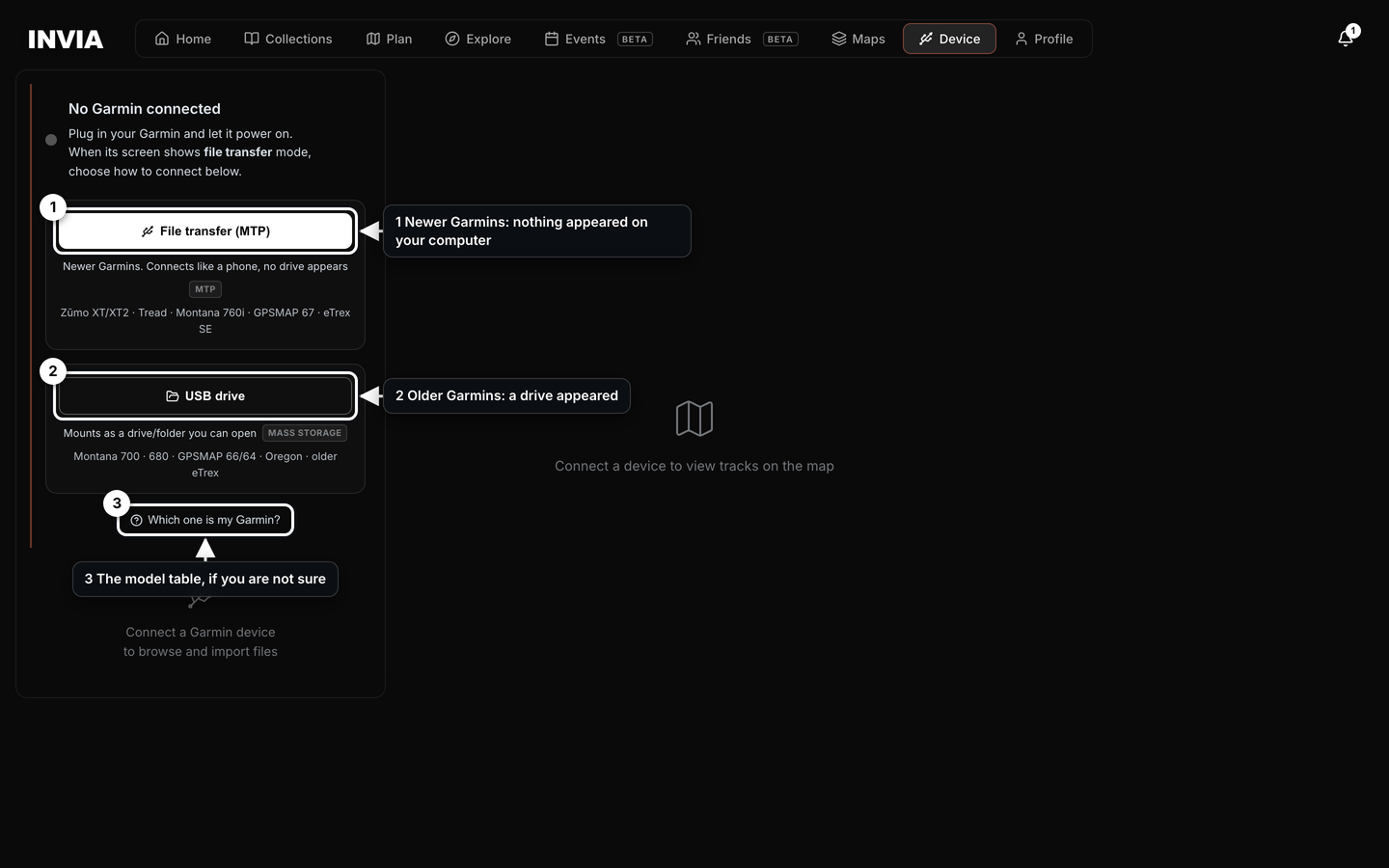
- Newer Garmins: nothing appeared on your computer
- Older Garmins: a drive appeared
- The model table, if you are not sure
Which kind of Garmin do you have#
A Garmin connects over USB in one of two ways, and which way depends on the exact model rather than on how new it is. Garmin still sells USB drive models alongside file transfer models, so a Garmin bought last year can be either one.
| File transfer | USB drive | |
|---|---|---|
| What your computer shows | Nothing appears | A drive or folder appears |
| What the device does | Keeps running normally, like a phone | Mounts like a flash drive you open directly |
To find out which kind you have, plug the Garmin in and watch your computer, because a USB drive model puts a drive or folder there and a file transfer model does not. Nothing appearing is expected behavior and not a fault. The Garmin is running as normal, so press File transfer (MTP) and it connects.
The Montana 700 series and the GPSMAP 66 series ship as USB drive models, so press USB drive for those two families. Either can be switched to file transfer on the device under Setup → System → Interface, so press File transfer (MTP) instead if that has been done.
Where the GPX file lands on the device#
INVIA connects to any Garmin that plugs in over USB, because it reads the folder layout from the Garmin itself rather than from a fixed list of models. A model missing from the table below still connects. The table is here because the folder differs by family, and knowing yours helps when you go looking for the file on the Garmin.
| Model | Connects | GPX folder |
|---|---|---|
| Zumo XT, XT2, XT3 | File transfer | Internal Storage/GPX |
| Tread, Tread 2, Tread XL | File transfer | Internal Storage/GPX |
| Montana 710, 710i, 760i | File transfer | Internal Storage/Garmin/GPX |
| GPSMAP 67, 67i | File transfer | Internal Storage/Garmin/GPX |
| eTrex SE, eTrex Solar | File transfer | Internal Storage/Garmin/GPX |
| Montana 700, 700i, 750i, GPSMAP 66 series | USB drive by default | Garmin/GPX |
| Montana 610, 680, 680t, GPSMAP 64 series | USB drive | Garmin/GPX |
| Oregon 600 and 700 series, eTrex 22x, 32x, Touch | USB drive | Garmin/GPX |
| Zumo 396, 595LM | USB drive | GPX at the top level, or the memory card |
Send a GPX file to the GPX folder, not to NewFiles. The NewFiles folder that most search results name is real on some handhelds, but a file left there does not stay. The Garmin reads what you leave there on the next restart and converts it into its own storage. What you see after that restart: the GPX file is no longer in NewFiles. Your route is on the Garmin and rides normally, and the GPX folder is where a GPX file stays and is read from every time. INVIA writes to the GPX folder, so you never have to use NewFiles.
A memory card, where one is fitted, behaves differently on the two kinds of Garmin.
- On a file transfer Garmin it shows up as a second storage inside the same connection, not as its own drive. INVIA sends to internal storage unless you pick the memory card, so choose it in the dialog if that is where you want the file.
- On a USB drive Garmin it mounts as its own volume, listed as SD Card beside Internal.
What arrives on the device#
- The route as a track, so the Garmin draws your exact line instead of recalculating it on its own map.
- A route's own named waypoints as named via-points, which keeps them attached to the line rather than detaching into saved places.
- Places you add separately as the Garmin's saved places, never as a list of via-points, so no stray line joins them together.
- Your route color, matched by hue to the nearest color the Garmin knows, so a route reads on the Garmin screen close to the way it reads in INVIA.
- Direction arrows, if you asked for them. Forward or Reverse draws small chevrons into the track line itself, so a complicated junction reads correctly on a small screen. There is no setting to find on the Garmin.
- A whole collection in one action, as one multi-track file plus a saved places file named {collection name} Waypoints.
A place that two stages of a collection share is sent once rather than twice, so you see one saved place on the Garmin instead of two. Both stages still run through it, so there is nothing to correct.
A GPX file loaded from your computer is rebuilt clean before it goes, so the street-address cue points some apps write into a file never turn into stops on the Garmin. The line itself arrives whole as a track, and named waypoints in the route still arrive as via-points. A GPX file holding several tracks lands as one track file plus a {file name} Waypoints file. What a GPX file is.
Confirming it landed#
The GPX file appears under On Device the moment a send succeeds, and that first listing is INVIA showing you what it sent rather than what the Garmin holds. Press ↺ Refresh before you unplug, because a refresh reads the Garmin again and lists what the Garmin itself reports back. The GPX file is listed under On Device after that refresh, which is the confirmation the file is on the Garmin.
The other ways to do it#
- Copy the GPX file in by hand. On a USB drive Garmin, open the GARMIN drive and drop the file into
Garmin/GPX. On Windows a file transfer Garmin appears in File Explorer as a portable device rather than a drive letter, so open it there and copy the GPX file into its GPX folder. Nothing built into macOS opens a file transfer Garmin at all, which is why the Device page in Chrome or Edge is the Mac route. - BaseCamp. BaseCamp works on USB drive models. A Garmin that never mounts as a drive is not listed in BaseCamp, and no cable change will list it, because the connection type is fixed by the model. Your route is still in INVIA, so connect the Garmin on the Device page and send it from there.
- Garmin Express. Garmin Express updates maps and software. It is not the way to get a GPX file onto a Garmin, whatever the aggregator pages say about dragging a file onto the device icon. Garmin Express also holds the Garmin while it runs, which blocks the connection everywhere else, so quit Garmin Express and connect again on the Device page.
- The Garmin Tread and Garmin Explore apps. These two apps are the no-computer path. Share a GPX file from your phone into the Garmin Tread app for a Tread, or into the Garmin Explore app for a handheld.
The browser path is shorter because you never have to know which folder your model reads, or whether it mounts as a USB drive. INVIA reads that from the Garmin, writes to the right folder, and shows you the GPX file landed.
When the route does not appear#
Work down this list in order.
- Wrong folder.
GPXat the top level of internal storage for a Zumo XT or Tread,Garmin/GPXfor a handheld, neverNewFiles. Send from the Device page and INVIA picks the folder for you. - Wrong storage. The GPX file went to the memory card while the Garmin was reading internal storage, so send it again from INVIA with Internal selected.
- The transfer did not finish. The cable came out, or the Garmin left file transfer partway through, and the GPX file is not listed under On Device after a ↺ Refresh. Plug the Garmin in again and send it again.
- You are looking for a route. INVIA sends the planned line as a track, so the Garmin draws that track rather than recalculating a route. Look under the Garmin's tracks, not under its routes.
- The send stopped and named the GPX folder. That is a Montana 710, GPSMAP 67 or eTrex SE on file transfer, because those three keep theirs inside
Garmin. Nothing was written, so send it from the Garmin Explore app instead.
Sending from the Device page removes the first two causes, because INVIA chooses the folder and the storage for you. When the Garmin will not connect at all.
Rides come back over the same cable. With the Garmin connected, Save All Activities to INVIA copies the recorded activities listed on the Garmin into your library, so a ride you recorded ends up beside the routes you planned. Importing tracks and activities.
Questions
How do I send a GPX file to my Garmin?
Plug the Garmin into your computer with a USB data cable, open INVIA in Chrome or Edge, and connect the unit on the Device tab with either File transfer (MTP) or USB drive. Once it is connected, press From computer to load a GPX file from your disk, or From INVIA to pick a saved route, and press Send to device. INVIA writes the file into the GPX folder on the storage you chose, and pressing Refresh afterwards reads the Garmin back, so you can see it landed before you unplug.
Which folder does a GPX file go in on a Garmin?
On a Zumo XT, a Zumo XT2 and every Tread it is the GPX folder at the top level of internal storage. On handhelds like the Montana, GPSMAP, Oregon and eTrex it is the GPX folder inside the Garmin folder. On a Zumo 396 or 595LM it is a GPX folder at the top level of the drive, or the memory card. The NewFiles folder that most search results name belongs to watches and cycling computers, not to these units.
Why doesn't my Garmin show up as a drive on my Mac?
Because most current outdoor and motorcycle Garmins never mount as a drive on any computer. The Zumo XT and XT2, the whole Tread family, the Montana 710, 710i and 760i, the GPSMAP 67 and 67i and the eTrex SE and Solar connect the way a phone connects, and macOS has no built-in support for that. Nothing is broken, and no cable or port change will make a drive appear. Connect the unit with File transfer (MTP) in Chrome or Edge instead.
Can I put a GPX on my Garmin without BaseCamp or Garmin Express?
Yes. Garmin Express updates maps and software; it is not the route to getting a GPX file onto a device. If your Garmin mounts as a drive you can copy the file straight into its GPX folder. If it does not, connect it in Chrome or Edge on INVIA's Device page and send it from there, or use the Garmin Tread or Garmin Explore app on your phone. Quit Garmin Express before you connect somewhere else, because it can hold the device.
How do I get a route onto my Garmin without a computer?
Use the Garmin phone apps. Export the route as a GPX file, open it from your files, mail or messages, and share it into the Garmin Tread app for a Tread, or the Garmin Explore app for a handheld. INVIA's own send goes over the USB cable, so it needs a computer.
I transferred the GPX but the route isn't showing on my Garmin. What now?
The usual causes are the file landing in the wrong folder for the model, landing on the memory card while the unit is reading internal storage, or the cable coming out before the transfer finished. Sending from INVIA rules out the first two, because the folder and the storage are chosen for you, and pressing Refresh reads the Garmin back and lists what is on it, so you can confirm the file is really there before you unplug.