Collections overview
What a collection is, how to create one, Stowed and Listed, ordering and the cover, taking a route out, waypoints in a collection, Map View, sharing, sending to a Garmin, events and deleting.
Last checked against the live app on 7 September 2026.
A collection is a set of routes and rides under one name, so a multi-day trip or a route pack travels as one thing rather than as a dozen loose files. It carries a description, a cover map INVIA draws for you, and waypoints of its own. Use one for a trip, a route pack, an event's routes, or a riding area. One route can belong to several collections, which means the same loop can sit in this year's trip and in your local riding area at the same time.
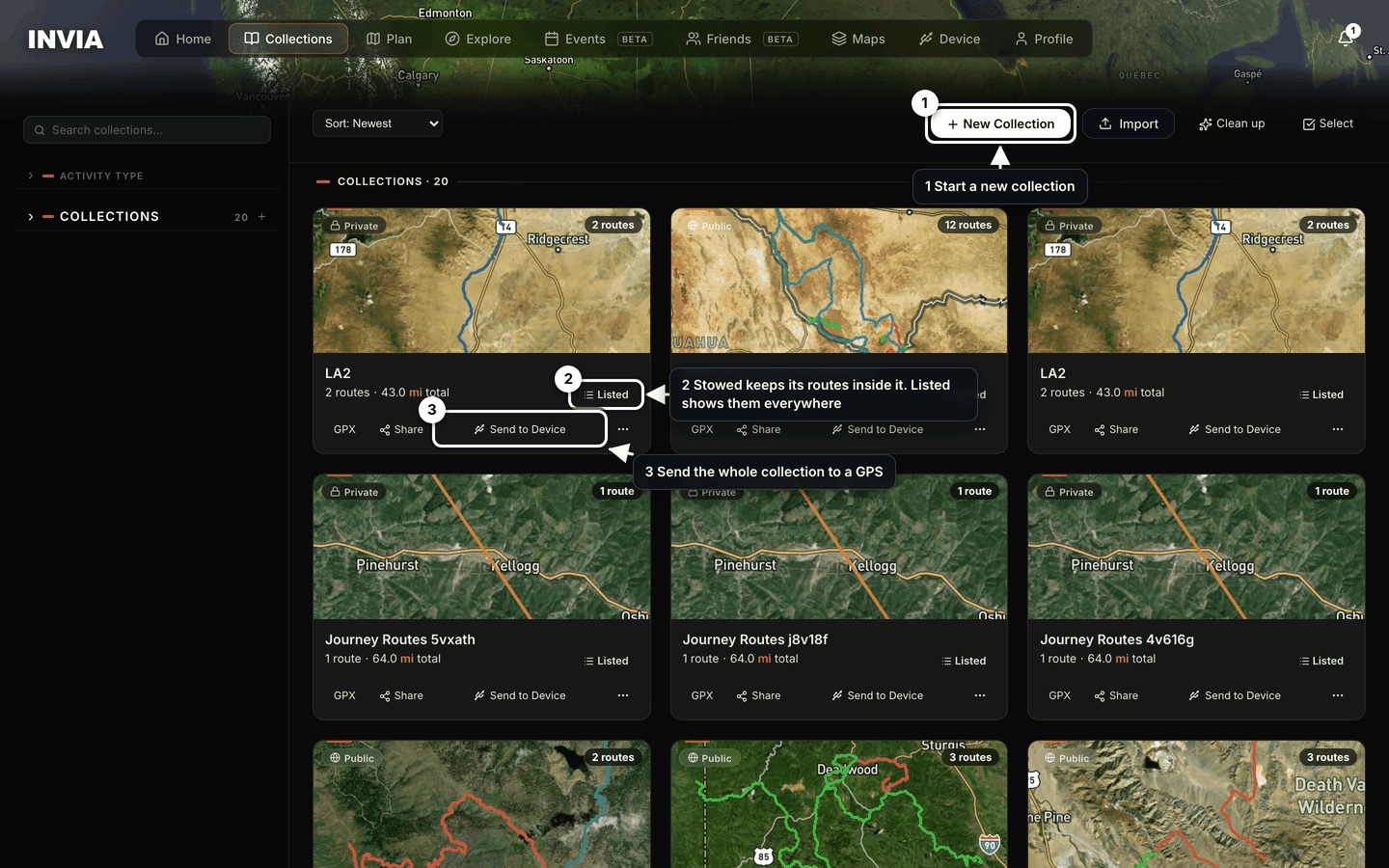
- Start a new collection
- Stowed keeps its routes inside it. Listed shows them everywhere
- Send the whole collection to a GPS
Creating one#
Start a collection from the Collections page, either empty or straight from files you already have.
- Press + New Collection.
- Name the collection.
- Pick routes and rides from your library.
- Or press Import GPX / KML files to import files straight into the new collection.
You can add more routes later from three places, so you do not have to have the whole trip decided on the day you create the collection:
- + Add Routes on the collection.
- Add to Collection on any library card.
- The Device page, after importing tracks.
Importing a multi-track GPX file creates a collection named after the file, so tracks that arrived together stay together instead of scattering across your Routes list. New collection, step by step.
Stowed or Listed#
Every collection carries one toggle with two settings, and it decides one thing only, which is where the collection's routes appear.
| Setting | Where the collection's routes appear |
|---|---|
| Stowed | Inside the collection only. |
| Listed | Inside the collection, and on your Routes, Rides and Home lists. |
New collections are stowed, because a twelve-stage route pack would otherwise fill your Routes grid and bury the routes you ride most.
What you see with a collection stowed:
- The collection card is on the Collections page.
- Its routes are listed inside the collection.
- Its routes are not on your Routes, Rides or Home lists.
Stowing changes where a route is listed, not what it can do. The routes still work. Open one, send it, or share it from inside the collection.
To put the routes back on your lists, set the toggle to Listed. To list one member and leave the rest stowed, press the eye icon on that member, which shows it in your library while it stays in the collection.
A route has at most one owning collection, and that is the first collection you added it to. Every other collection holding the same route holds a reference to it, which changes nothing about where the route shows or what it can do. The difference matters in one place, which is the menu you use to take a route out again.
Order, cover, description#
Reorder members in two ways:
- Drag a card to a new position.
- Use Move to top, Move up and Move down in the tree.
The order you set is the order everywhere, so the sequence you ride is the sequence in the list, in the GPX file and on the Garmin.
The cover is a static map framing every member, each route in its own color. INVIA redraws it whenever the collection changes, so there is nothing to upload.
Edit the description from Edit name & description, or inline on the map page. Collections filter by activity type, by year and by search, which is how you find one once you have more of them than fit on a screen.
Taking a route out#
The card menu holds four items that take a route out of a collection. Which one you want depends on whether this collection owns the route or only holds a reference to it.
Move to Routes#
Use this for a route this collection owns, when you want the route standing on its own again.
What you see afterwards:
- The route is on your Routes list.
- The route is no longer in this collection.
- The route's own waypoints went with it, because they belong to the route.
- Waypoints you added to the collection stay in the collection, because they belong to the collection.
Remove from this collection#
Use this for a reference, meaning a route another collection owns. It takes the route off this collection's list and leaves the original where it is.
What you see afterwards:
- The route is no longer in this collection.
- The route is still in the collection that owns it.
- The route is not deleted.
Copy to another collection… and Move to another collection…#
Both items carry the route's waypoints, description, ratings and comments along, so the route arrives in the other collection with everything it had rather than as a bare track.
Waypoints in a collection#
A collection carries two kinds of waypoint, and the difference decides where you edit them.
| Kind | Where it comes from |
|---|---|
| A member's own waypoints | The route or ride itself. |
| The collection's own pins | Leftovers from an import that no track claimed. Places you filed in from the waypoint library. Waypoints swept in when a route was deleted. |
The tree shows both.
- Expand a member to see that member's own waypoints.
- Open the Waypoints group at the bottom to see the collection's own pins.
Rename or remove a pin in the Waypoints group. The change applies in this collection only, so the same place stays as it was in your waypoint library and in any other collection using it.
When the collection travels, INVIA builds one package set from every one of those waypoints. The same place appearing in more than one member is folded together, within 50 meters, so the Garmin does not list the same fuel stop once for every route that passes it. How waypoints travel.
Map View#
Map View draws every route in its own color and gives each one direction arrows and a start dot, so you can tell the routes apart and see which way each one runs. Each route's own waypoints show as markers.
The collection's own pins are not drawn on this map, because they belong to the collection rather than to any one route. Open the Waypoints group in the tree to see them.
The left panel holds:
- The description.
- GPX, Device, Share and Pin.
- The community panel: favourites, comments and difficulty votes.
- The route list.
Each row in the route list has a color swatch for your own routes, a show or hide control, and a remove control. Hide the rest to leave only the stages you are comparing.
Click a route line to read its distance, its number of points, its climb, and its minimum and maximum elevation. Basemaps include Topo. Export PDF prints the map with a legend (Pro), so you can carry the plan on paper. A strip of route thumbnails runs below the map.
Sharing a collection#
The pill makes a collection public or private. Making the collection public also makes its routes public, so a visitor sees the whole set rather than a map with gaps in it.
- Make the collection public first.
- Press Share. INVIA copies the link,
inviagps.com/collection/….
A visitor to that link sees:
- The map.
- The route list.
- The distance.
- Open in INVIA, which copies the collection into their library after sign-in.
Downloads are separate from sharing, because showing someone a collection is not the same as handing them the files.
- Download for Garmin.
- Download for mobile. Arrows are pre-checked, because phone apps do not draw direction.
- Both appear only when downloads are allowed.
Who may download the file#
Only the owner, and only when every route in the collection is the owner's own. A collection holding anything saved from another rider cannot be downloaded as a file by anyone, because a package file would carry that rider's waypoints out with it.
What you see on a collection that cannot be downloaded:
- Download for Garmin and Download for mobile do not appear.
What still works:
- The share link still opens.
- The map, the route list and the distance still show.
- Open in INVIA still copies the collection into a visitor's library.
What the owner can do:
- Switch on Allow downloads in the share sheet.
- That mints a separate link, and the permission lives in that link rather than in the collection, so only the people you send it to can take the files.
- Revoke that link at any time.
Share links and Allow downloads.
Sending a collection to a Garmin#
- Connect the Garmin on the Device page.
- Press Send to Device on the collection, or From INVIA on the Device page.
- Choose the storage.
- Choose the direction arrows.
INVIA writes two files, one holding the routes and one holding the waypoints.
| File | What is in it |
|---|---|
Name.gpx |
One track per route, in collection order. |
Name Waypoints.gpx |
Every waypoint in the package, de-duplicated. |
The pair counts as one device send. Two files leave INVIA, but they count against your sends only once, because one send action counts once however many files it writes. Selecting several routes and sending them together counts once for the same reason.
The waypoint limit#
A package carries a soft limit of 500 waypoints. Waypoints past that limit are left off the waypoints file, so the send finishes rather than failing outright.
The send itself still succeeds, because INVIA writes the tracks file first and then the waypoints file with everything that fitted, and neither file is cancelled or undone on account of the overflow. The success message arrives first and the overflow warning follows it, so a warning on screen does not mean the collection failed to reach the Garmin.
What you see:
- Both files are still written to the Garmin.
- The message names every waypoint left off.
- To carry every waypoint, send the collection in smaller parts.
When the waypoints cannot be loaded#
One failure stops a collection send before anything is written, which is INVIA being unable to load the collection's waypoints. The message names the collection, states that nothing was sent, and asks you to try again, so the Garmin is left as it was and sending again is safe.
A member hidden from you#
If any member is hidden from you, INVIA warns that the send may be partial. The warning comes before INVIA writes anything, so no file has reached the Garmin at that point and you can stop without undoing anything. Sending.
Collections in events#
An organizer attaches a collection to an event with a day number and a display label, so you can tell which day's routes you are looking at. Riders who join the event get the collection.
A rider who joined can do three things with it:
- Import it to their library.
- Send it to a device.
- Download it, when the organizer allows downloads.
Deleting#
Deleting a collection moves its routes back to My Routes, so the collection can go without taking your riding with it. The confirmation reads Delete "{name}"? and Routes will be moved back to My Routes. This can't be undone.
What you see afterwards:
- The collection is no longer on the Collections page.
- Its routes are in My Routes.
- The collection's own pins are in your waypoint library, labelled with the collection's name.
The collection itself is gone, and that cannot be undone. Your routes and your pins survive it.
Clean up finds duplicate collections (Pro), meaning a collection with the same name as another, or a collection holding exactly the same routes.
Free accounts have a limit on the number of collections. A Pro account has no limit, so you can keep one collection per trip without clearing out old ones to make room. The limit counts collections rather than what is inside them, which means it applies when you create one and never when you add more routes to a collection you already have. INVIA does not print the number anywhere, and there is no running count on the Collections page, so making room on a free account means deleting a collection you have finished with.