Map Library
The Maps tab: your saved Garmin map designs as cards with View on Map, Edit and Delete, the empty state, cloud save, and the Create New Map button that opens the builder.
Last checked against the live app on 3 September 2026.
The Maps tab opens the Map Library, which keeps every Garmin map you have designed as its own card so you can send a design again months later without rebuilding it. The page subtitle reads Build custom maps from GPX tracks and send to your Garmin device.
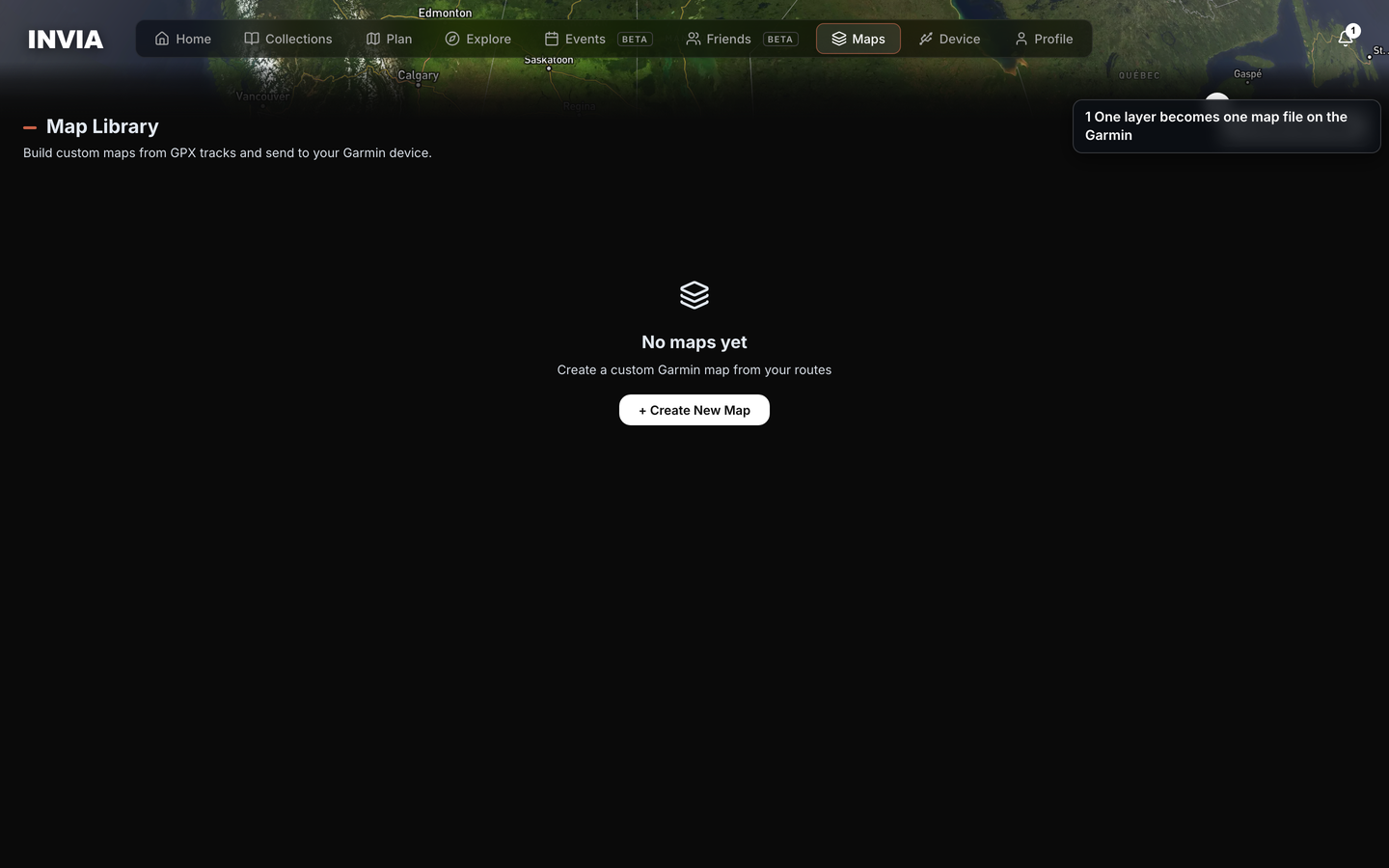
- One layer becomes one map file on the Garmin
A map design is a saved set of layers, tracks and options, and it lives in INVIA rather than on the Garmin. The map file that design builds is what lives on the Garmin. The two are separate, which is why the library can keep a design long after the map file is gone from the device, and why removing one never removes the other.
Cards#
Each saved design is one card, and the card shows four things so you can tell your designs apart without opening any of them.
- A thumbnail of the design's tracks, each track in its own color.
- The design name.
- The number of tracks in the design.
- The date the design was last saved.
Every card carries four controls.
| Control | What it does |
|---|---|
| View on Map | Opens the design's tracks on a preview map, so you can check what is in the design before you build it. |
| The USB button | Opens the design in the builder, ready to send. |
| Edit | Opens the design in the builder. |
| Delete | Removes the design, after a confirmation. |
The USB button is disabled#
A send needs somewhere to send to, so the USB button stays disabled until a Garmin is connected on the Device page.
What you see:
- The USB button is dimmed and does nothing when pressed.
- Hovering it reads Connect Garmin on Device page first.
What still works:
- View on Map, Edit and Delete.
- The design stays saved.
What to do:
- Open the Device page.
- Connect the Garmin.
- Return to the Map Library. The USB button is active again.
Saving a design#
Designs are saved to your account, so a design you build on one computer is in the library when you sign in on another. INVIA also mirrors them in this browser, which means the card is on screen straight away rather than after a round trip to your account.
A save to your account can fail, and INVIA tells you instead of leaving you to find out later.
- You see the toast Cloud save failed, check your connection and try again.
- Your other saved designs are unchanged.
- Check your connection. Save the design again.
Deleting a design#
Deleting takes the design out of the library and touches nothing else, which is what the two-step confirmation is protecting.
- Press Delete on the card.
- The confirmation reads Delete this map? and This can't be undone.
- Press Delete again.
What you see afterwards:
- The card is no longer in the Map Library.
- Your routes, rides and tracks are untouched.
- Map files already written to the Garmin stay on the Garmin.
What to do:
- There is no undo, so getting the design back means building it again from the same tracks with + Create New Map.
- To take a map file off the Garmin, delete it in the Maps panel on the Device page. IMG maps and the file browser.
A delete can fail to reach your account. The card leaves the grid before INVIA hears back, so the design returns on the next load rather than staying gone.
- The toast reads Failed to delete map.
- The card leaves the grid anyway.
- The design is listed again the next time the Map Library loads.
- Press Delete on that card again.
Empty library#
With no saved designs the library shows No maps yet and Create a custom Garmin map from your routes. The one button on the page is + Create New Map, so there is nothing else to choose between on a new account.
Searching#
The search box appears once one design is saved, because a library with nothing in it has nothing to filter. It filters the cards by name.
When no design name matches:
- The library shows No maps match and Try a different search.
- Every saved design is still there.
- Clear the search box to see them all.
Into the builder#
+ Create New Map and Edit both open the builder in place, so you stay on the Maps tab instead of moving to another page. ← Map Library returns to the library. Builder: layers and inputs.
What is free#
Browsing the Map Library is free. Creating, editing and saving a design are free.
Three actions need Pro, because each one produces a map file or puts it on your Garmin.
- Building the .img.
- Downloading the .img.
- Sending a map to a Garmin.