Browsers, units and the nav bar
Which browsers INVIA supports, where the unit preference lives, and the nav bar tab by tab: Home, Collections, Plan, Explore, Events, Friends, Maps, Device, Profile, and the bell.
Last checked against the live app on 3 September 2026.
INVIA runs in any modern browser. Only the Device page needs Chrome or Edge.
Browsers#
Connect a Garmin over the cable in Chrome or Edge, because Chrome and Edge are the only browsers that let a web page talk to a USB device or open a drive. Every other job in INVIA runs the same wherever you open it.
| Browser | What works |
|---|---|
| Chrome, Edge | Every tab, including Device |
| Safari, Firefox | Every tab except Device |
In Safari or Firefox the Device page shows Different browser needed, because those two browsers give a web page no way to reach a cable. Every other tab works normally in Safari and Firefox. Your routes, rides, collections and waypoints are all still there, so you lose nothing by planning in Safari or Firefox. Open INVIA in Chrome or Edge when you want to send a route to a Garmin or import one from it.
The Device page still loads in full in Safari and Firefox, so you can see everything on it except a way to connect. At the top sits the Different browser needed panel, holding a Download Chrome button and a Copy link button that copies the Device page address for pasting into Chrome or Edge. The panel also says your routes and rides live on your account, which means there is nothing to move across when you open INVIA in Chrome or Edge.
Below it the connection card reads No Garmin connected, next to the Which one is my Garmin? help link. The map panel reads Connect a device to view tracks on the map, because nothing is connected for it to draw. The one thing missing is the pair of connect buttons, File transfer (MTP) and USB drive, because neither route to a device exists in Safari or Firefox.
Device sync also needs a secure connection, so without one the Device page shows Device sync requires Chrome over HTTPS.
No other tab is affected, which means you can carry on planning while you reopen INVIA over HTTPS in Chrome or Edge.
Units#
INVIA stores every distance in imperial and converts it on screen to the units you pick, so the setting changes what you read rather than what you rode.
- Open the Profile tab.
- Scroll to the Settings card.
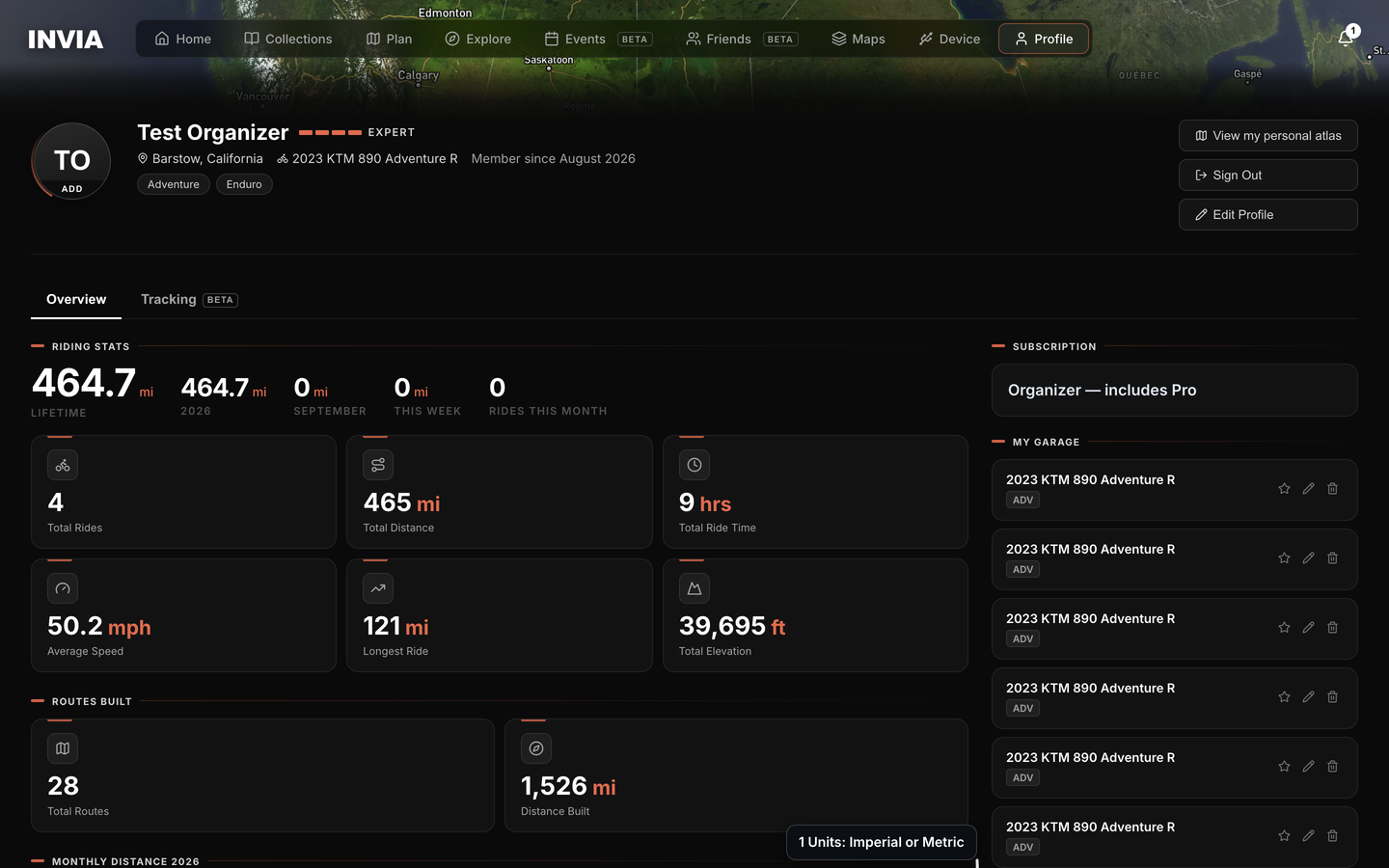
- Under Units, choose Imperial or Metric.
The same choice sits in Edit Profile under Preferences, so you can change it from either place. Distances, elevation and speeds across the app follow it, which means you never set units route by route.
Switching to Metric changes what you see, not what is stored. No route, ride or waypoint is changed by the switch, so you can switch back to Imperial whenever you like and see miles again.
- Units: Imperial or Metric
The nav bar#
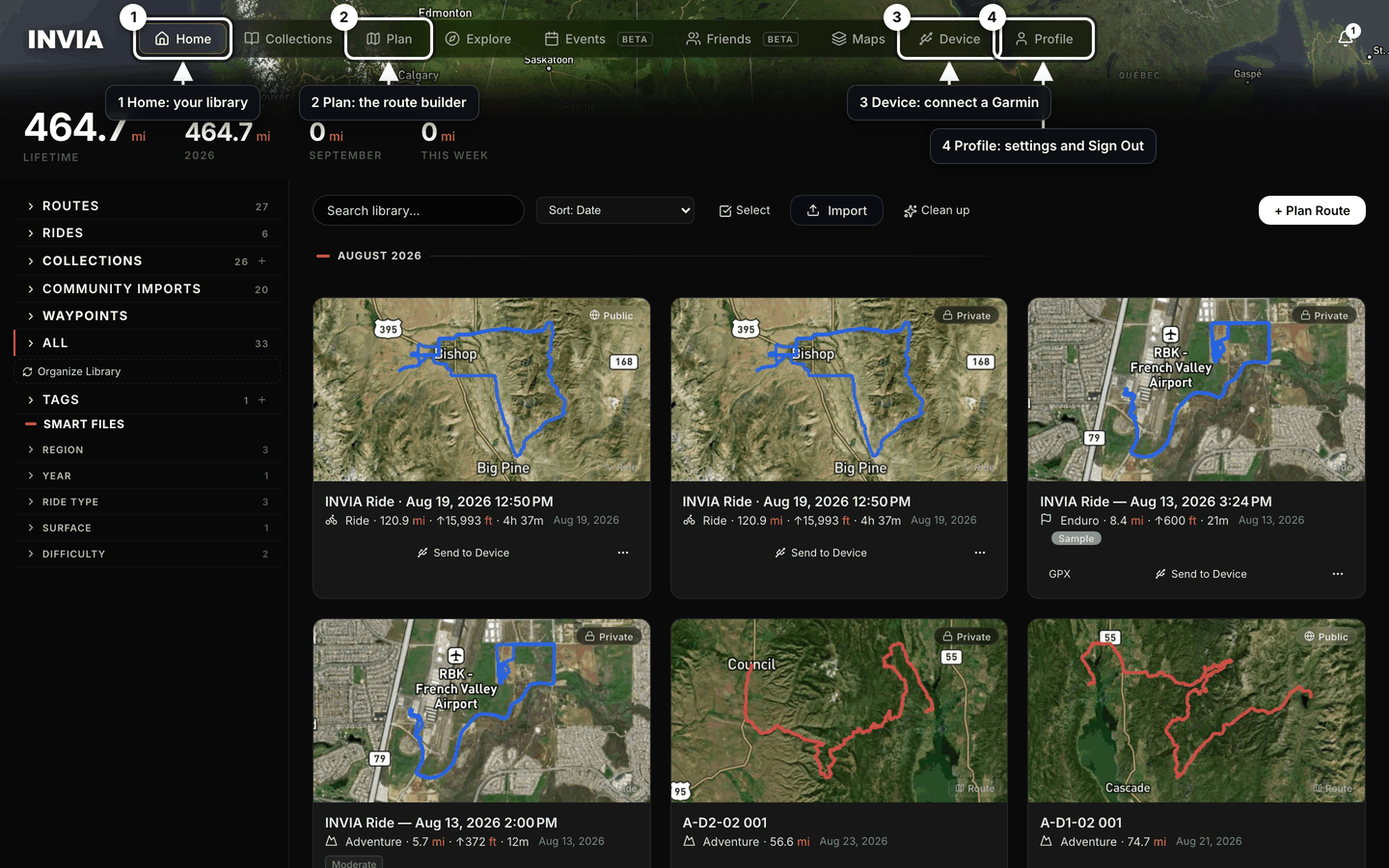
- Home: your library
- Plan: the route builder
- Device: connect a Garmin
- Profile: settings and Sign Out
The nav bar sits above every screen, so its nine tabs are how you move around INVIA. The manual follows them in this order:
- Home: your library of routes, rides, collections, waypoints and tags.
- Collections: routes grouped into one thing.
- Plan: the route builder.
- Explore: everyone else's public riding.
- Events (Beta): meet-ups and organized events. Shown only to accounts with the events beta.
- Friends (Beta): friends, groups and location sharing. Shown only to accounts with the social beta.
- Maps: the Garmin map builder and Map Library.
- Device: connect a Garmin, send and import.
- Profile: stats, garage, settings, subscription.
Press Home again while you are already in the library and it returns to its top level, so you do not have to retrace your way back.
A tab you cannot see#
A tab you do not have access to is dropped from the bar. It is not shown greyed out.
A tab missing from your bar means your account does not have that feature rather than something being broken, and typing its address sends you to Home instead.
The tabs you can see all work as listed above. Events is shown only to accounts with the events beta, and Friends only to accounts with the social beta, which is why two riders sitting side by side can see different bars.
Ask INVIA to add your account when your Events or Friends tab is missing, because there is no way to ask for either beta from inside the app. INVIA turns each one on for a single account at a time, so there is no waiting list to join and no setting in the app that switches it on. INVIA can turn it off again the same way, or set it to run out on a date. Nothing about your plan changes it, which means paying for Pro turns on neither tab.
Platform administrators see a tenth tab, Admin.
A narrow window#
On a narrow window the bar collapses to a menu button, because nine tabs do not fit across a small screen. Your tabs are still there, inside the menu. Open the menu button to reach a tab, or widen the window to bring the bar back.
The bell#
The bell at the right end of the bar opens Notifications, which is where every alert lands whether or not you saw it arrive.
- Notifications holds a Mark all read button, so you can clear the list without opening each one.
- The unread badge shows the count up to 9+.
- Above nine unread the badge reads 9+ and stops counting, so it tells you there is a backlog rather than its size.
- Above nine unread, every notification is still listed in Notifications. Open the panel to read them.
- A toast appears when a new notification arrives, so you see it without watching the bell.
- INVIA checks for new notifications every 30 seconds while the app is open.
A new notification can take 30 seconds to reach the bell, because that is how often INVIA checks, so an empty bell right after something happens is normal. Wait 30 seconds and check the bell again.
Signing out#
Sign Out is on the Profile tab, next to Edit Profile. There is no account menu in the nav bar, so open the Profile tab to sign out rather than looking for one in the bar.