Toolbox: Edit
The Edit group of the route builder: Detour in three clicks, Trim, Split and Join, Add Route, Reverse, delete, undo and redo, what can be dragged, and how to start over.
Last checked against the live app on 3 September 2026.
The Edit group in the Toolbox changes a route you have already drawn, rather than adding to the end of it. One section tool runs at a time, so starting Detour cancels Trim and Split and two tools never read the same click. Press Esc to back out of the tool you are in.
Detour: reroute a section through a point you choose#
Detour replaces one stretch of your route with a new one through a point you pick, so you move a section onto another road without redrawing the route.
Press Detour, then three clicks.
- Click the route line at one end of the stretch you want to replace.
- Click the route line at the other end. The stretch between the two turns cyan.
- Click where you want it to go instead, on any road or trail. The cyan stretch reroutes through that point.
Either end can be clicked first, because INVIA sorts the pair into route order for you.
A click that lands off the line is ignored#
While you are picking the two ends, INVIA ignores any click that lands more than about 30 pixels from the route line, because a click that far off is likely a miss. No end mark appears. The route line is unchanged and Detour is still running, so you click again, closer to the route line.
The third click is never refused#
The 30 pixel rule covers the first two clicks only, so the third click commits wherever you put it. Detour does not test it against the route line or against anything else, which means a click that lands away from any road or trail still commits. The two new legs run out to that point and back as straight lines rather than being rejected, the same as any other point off the road network.
Waypoints inside the replaced stretch#
The new stretch follows the road you picked rather than the old line, which means it does not carry over the points that were inside the old one. Unnamed route points inside the stretch are removed, because they only shaped a line that no longer exists. Named waypoints inside the stretch are moved to pins beside the route. They are not deleted. Both ends of the stretch stay exactly where you clicked, and the rest of the route is untouched, so nothing is required of you and you can keep building.
Press Esc to cancel Detour before the third click, so marking one end or both commits you to nothing. The route line is unchanged.
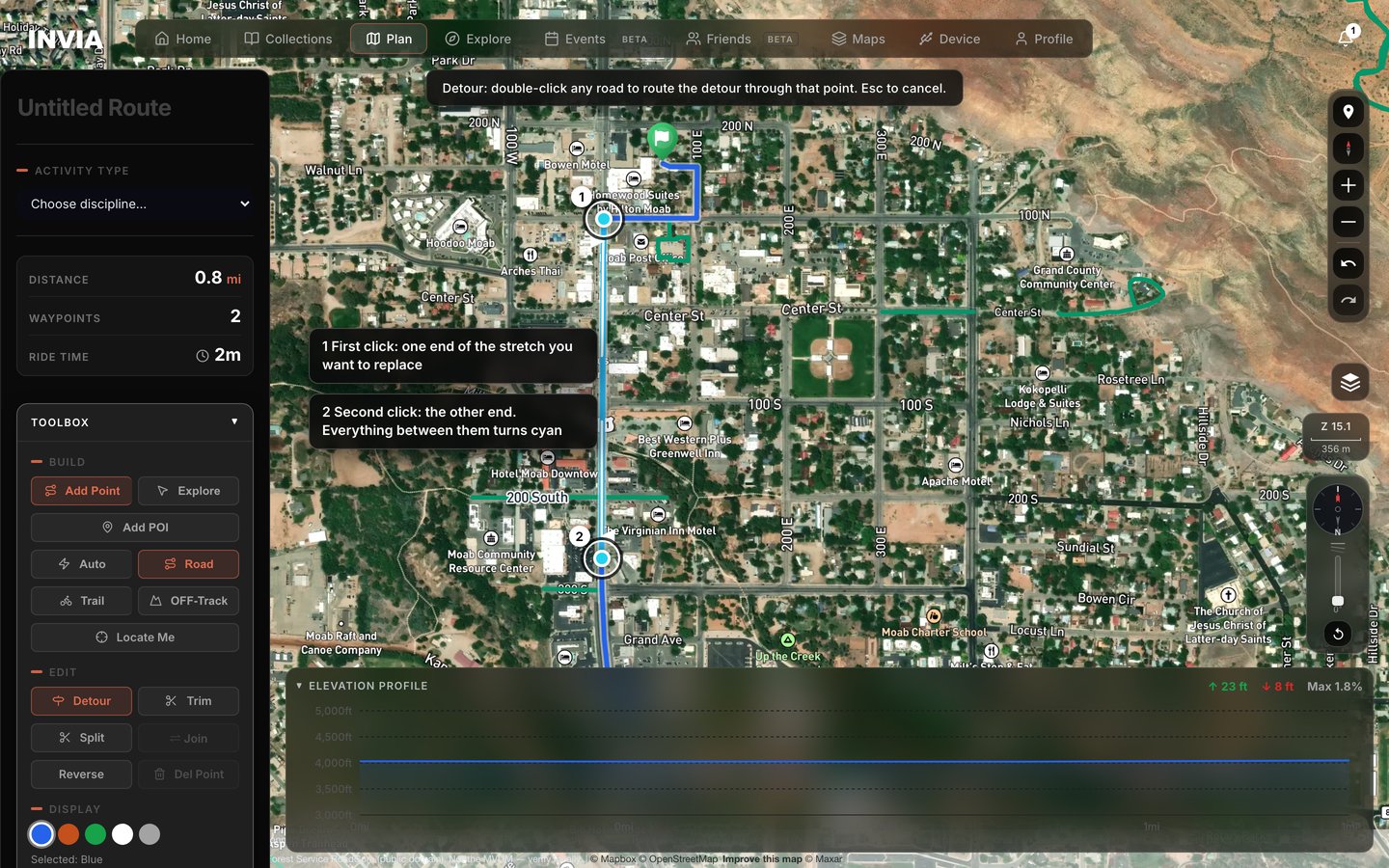
- First click: one end of the stretch you want to replace
- Second click: the other end. Everything between them turns cyan
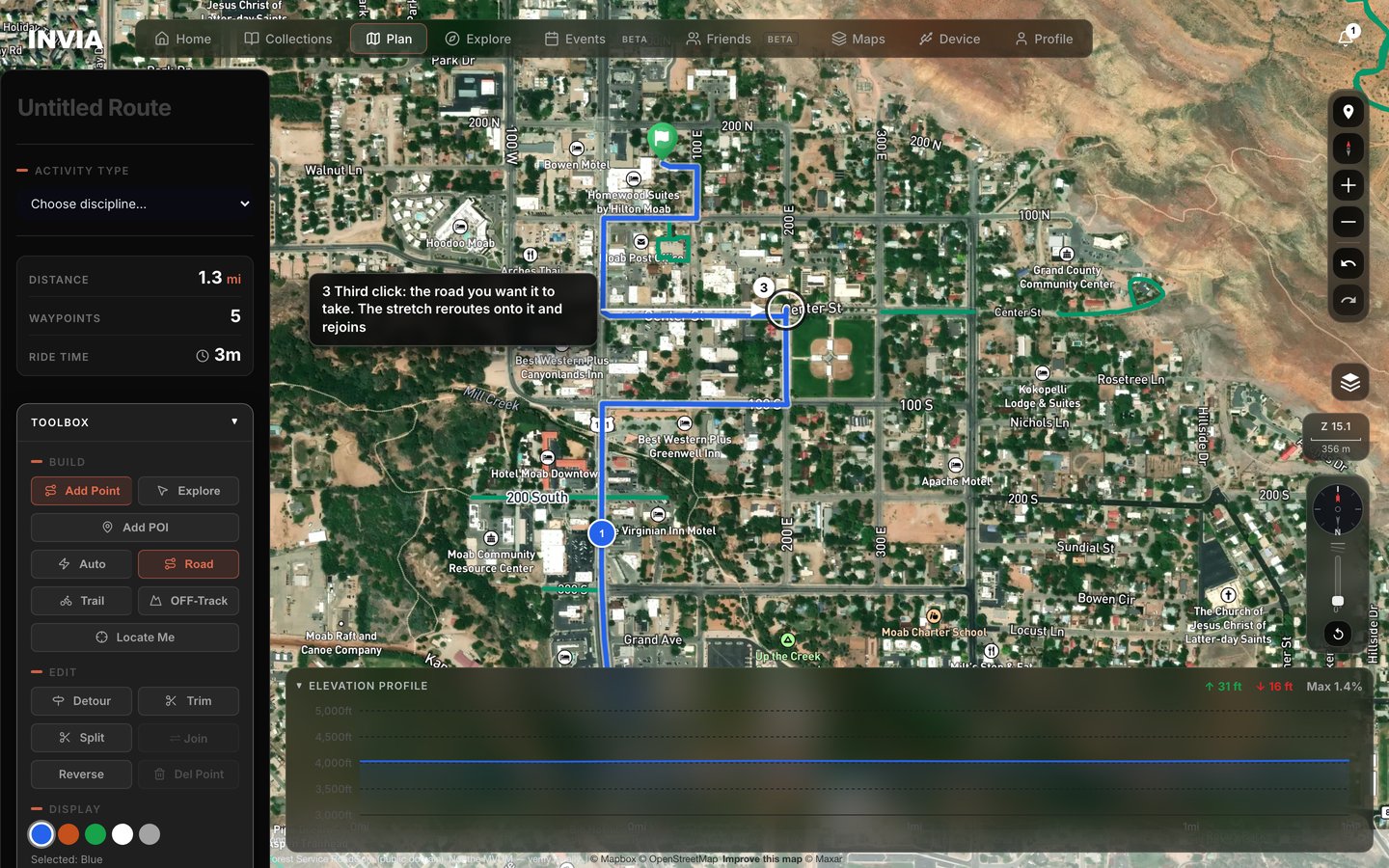
- Third click: the road you want it to take. The stretch reroutes onto it and rejoins
The two pictures are the same route at the same zoom, before and after the third click. The cyan stretch leaves Main Street, runs a block east along 200 East and rejoins, so distance goes from 0.8 miles to 1.3. Everything outside the cyan stretch is unchanged, which is why Detour moves one section rather than starting the route again.
Trim: cut a section out#
Trim takes a stretch out of the middle of your route and closes the gap behind it, so you can drop a wrong turn without losing the miles on either side of it.
- Press Trim.
- Click the start of the section on the route line.
- Click the end of the section. The section turns red.
- Click the red section, or press Remove section.
The red section is gone from the route line, and the two ends of the cut become new route points. The active routing mode reconnects them, so you are left with one route rather than two. Named waypoints inside the cut are moved to pins beside the route. They are not deleted. If the cut took more than you meant, press Ctrl+Z to undo it.
To back out at any stage press Cancel in the banner that guides you through Trim, which clears the marks and leaves the route exactly as it was. Cancel sits next to Remove section once the red section is marked, so the two choices are side by side and you do not have to remember a key. Pressing the toolbox button a second time does the same thing, and while the tool is running that button reads Trimming. Esc is the third way to back out, not the only one.
Split and Join: one route into several#
Split breaks one route into sections you can name, edit and save on their own, so you can keep part of a long route without saving the whole of it.
Press Split and click the route line. Or right-click the route line and choose Split here.
Two rules apply, both because a split has to leave a section on each side of the cut. The route needs at least three points, and the split cannot be at an endpoint.
The route is then two sections, named Part 1 and Part 2, and each section gets its own color so you can tell them apart on the map. The sidebar switches to a Segments panel, which is where you work with the sections from here. Nothing is deleted. Every point is still on the map.
In the Segments panel you click a segment to edit it, and you can rename a segment so the parts reach your library under names you recognize. Save saves one section on its own and Save Both saves every section, so you choose whether the parts live separately or together. Rejoin Route or Join merges the sections back into one route, in order, if you decide the split was not what you wanted.
Up to five routes can be open in the builder at once, so you can work on several before saving any of them.
A refused split says why#
A refused split says why in a notice near the top of the screen and switches Split off, which means you start the pick again rather than repeating a click that cannot land.
Too few points reads Add more waypoints to your route before splitting. A click at or past an end reads Click somewhere in the middle of the route to split. A click that is inside the route but too near an end to leave two usable halves reads Click nearer the middle of the section to split. Choosing Split here from the right-click menu at an end point reads Cannot split at endpoint. The route line, its points and its sections are unchanged in every one of these cases, so a refused split costs you nothing but the click.
Add Route#
Add Route keeps the current route on the map as a section and starts a blank one, so you can build several routes in one sitting and save them together.
Your current route is not cleared. It becomes a section and the new route starts empty, so you click a section whenever you want to switch back to it.
Reverse and Del Point#
Reverse flips the direction of the whole route in place, so the route line and its points do not move and only the order changes. The point that was the finish becomes the start. Press Ctrl+Z to undo the flip.
Del Point removes the selected named waypoint, and Backspace does the same. The waypoint is gone from the route and the rest of the route stays on the map, so there is nothing else to repair. Press Ctrl+Z to put the waypoint back.
Undo and redo#
Press Ctrl+Z to undo and Ctrl+Y to redo. Use Cmd on a Mac. The arrows in the map controls do the same.
Every committed edit is one step, a split and a join included, so one press takes back one whole edit rather than a piece of it. Undo restores the previous geometry directly rather than re-routing, which is why it is instant and exact. Reopening a saved route seeds the undo stack with its last 25 points, so you can walk a saved route back point by point.
That 25 applies only to a route you reopened from your library, because its earlier points are rebuilt for you as the route loads. Work you do in the current session is not capped at 25, which means you can step back through every edit you have made since you started.
With nothing left to undo the arrow in the map controls dims and stops responding, so pressing undo past the end changes nothing on the route and shows no message. Ctrl+Z behaves the same way, which means you can press it without first checking how far back you have gone.
What can be dragged#
Drag these four to move a stop or an end without redrawing the route.
- Named waypoint markers.
- The green start pin.
- Orange off-road anchors.
- Off-route pins.
These two do not move by dragging, so each has its own way to change instead.
- The road part of the route line. Use Detour to move it.
- The finish marker. Extend the route or undo to change the end.
New, copy, import, cancel#
New Route#
New Route clears the current route from the map so you can start over on an empty map. INVIA asks first: Clear current route? / Your current route will be cleared.
The map is empty once you confirm and no route is loaded, so do not confirm if you still want the route on the map, and save it first. A version you already saved is still in your library. Clearing the map does not delete it.
Save & edit copy#
Save & edit copy saves the current route, then opens an unsaved copy named Copy of the original, so you can try a different line without touching what you just saved. The copy is on the map and is unsaved, so it is the one you edit from here. The original stays as saved. Save the copy when you are done with it.
Nothing is filed under the copy's name when you press the button, because only the original is written to your library, with your current edits in it. The copy's name sits in the name box where you can type over it, so Copy of is a starting point rather than the name it has to keep. The copy reaches your library when you press Save, and it lands in My Routes unless you choose a different collection in the save dialog.
Import#
Import loads a route from your library, a GPX or KML file, or a connected device. With something already on the map, the import is added as another section. Your current route stays on the map. The import does not replace it, which means you can bring in a track and carry on with the route you were building.
Cancel Edit#
Cancel Edit appears while you are editing a saved route, and it restores the route as loaded, so you can abandon a run of edits without stepping back through undo. The route on the map goes back to the version you loaded. Edits made since you loaded it are discarded. The saved route in your library is unchanged, so nothing you already saved is at risk.
Leaving the Plan tab#
Leaving the Plan tab with unsaved work asks whether to keep the route active or clear it, so the decision is yours rather than the app's. The route is never cleared silently. You are always asked. Keep the route active and the route is still loaded when you return to Plan. Clear it and the map is empty when you return to Plan.
Keyboard#
| Key | What it does |
|---|---|
| Esc | Cancels Detour, then Trim, then returns to Add Point, then exits Split. |
| Backspace or Delete | Removes the selected waypoint. |
| Enter | Saves an open waypoint editor. |