Send GPX to a Garmin Montana
Where GPX files go on a Montana 700, 710i, 760i, 610 and 680, which models mount as a drive, and how to transfer a route from your browser.
Connects as Either, depending on the modelGPX folder /Garmin/GPX/ on the drive models, Internal Storage/Garmin/GPX on the 710, 710i and 760i
Last checked against the live app on 4 September 2026.
On a Montana, your route file goes in the GPX folder inside the Garmin folder. The path is /Garmin/GPX/ on the Montana models that mount as a drive. The path is Internal Storage/Garmin/GPX on the Montana 710, 710i and 760i, which never mount as a drive.
You never open either folder yourself on a Montana 700, 610 or 680, because INVIA finds that Montana's GPX folder and writes the file there. On a Montana 710, 710i or 760i, INVIA looks for a folder named GPX at the top level of the storage you picked and never looks inside the Garmin folder. INVIA has not confirmed that on a physical Montana 710, 710i or 760i, so read the note under the file transfer heading below before you send. Plug the Montana in, connect it on the Device page and press send, and INVIA then re-reads the Montana and lists the file under On Device so you can see the route arrived.
Which Montana do you have#
| Model | How it connects | GPX folder |
|---|---|---|
| Montana 700 / 700i / 750i | Ships as a USB drive, can be switched to file transfer | /Garmin/GPX/ |
| Montana 710 / 710i / 760i | File transfer only, no drive ever appears | Internal Storage/Garmin/GPX |
| Montana 610 / 680 / 680t | USB drive only, enters drive mode on its own | /Garmin/GPX/ |
The model decides this rather than the purchase date, because Garmin still sells the drive-mounting Montana 700 series alongside newer file transfer only models. A Montana bought this year can still be a USB drive.
Transfer a route from the browser#
- Plug the Montana in with a USB data cable and let it power on. A charge-only cable carries power and no data, so the Montana charges and the Device page finds nothing. Fit a USB data cable instead.
- Open the Device tab in Chrome or Edge. Press USB drive for a Montana 700, 610 or 680, or File transfer (MTP) for a Montana 710, 710i or 760i, because those two groups connect in different ways.
- Accept the prompt if the Montana asks on screen to enter file transfer mode. Connecting can take up to about a minute, so leave the cable in rather than unplugging and starting again.
- Pick the device when the card reads Almost there. On a Montana 700, 610 or 680, press Select my Garmin drive →, then click GARMIN in the sidebar of the window that opens and press Select. Select the GARMIN folder itself with no folder opened inside it, so INVIA can reach the GPX folder for you. On a Montana 710, 710i or 760i, press Select my Garmin →.
- Choose what to send. Press From INVIA for a saved route, ride or collection, or From computer for a GPX file already on your machine.
- Check the name in SEND TO DEVICE, choose Internal or SD Card if both are loaded, set Directional arrows to Off, Forward or Reverse, then press Send.
- Wait for the dialog to read SENT before you unplug, because INVIA re-reads the Montana at that point and the file then appears under On Device.
INVIA remembers the Montana after the first connection, so later sends skip the picker. If the browser lets that permission lapse, the Device page shows Reconnect instead, which costs you nothing: your routes in INVIA and the files on the Montana are untouched. Press Reconnect and pick the Montana again.
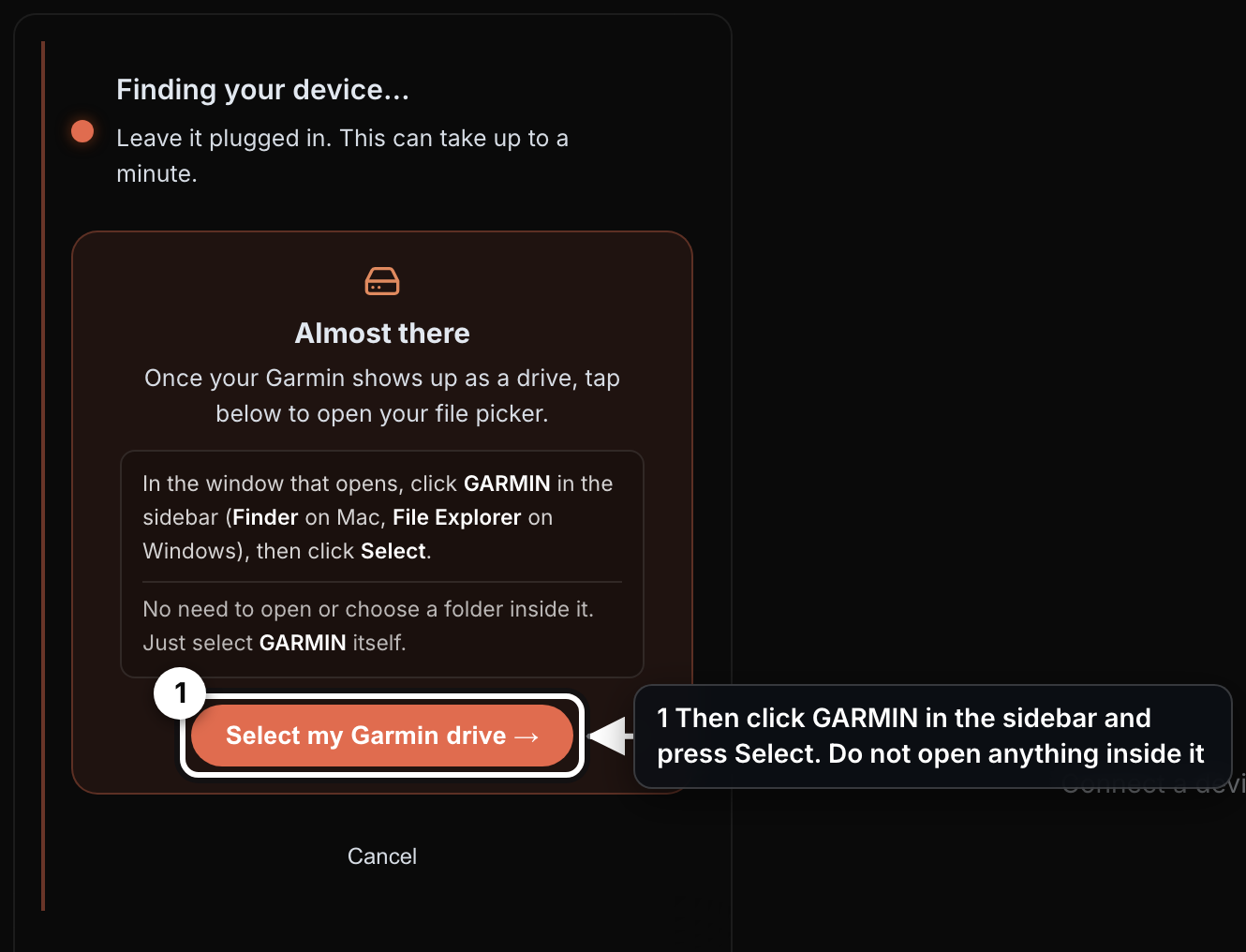
- Then click GARMIN in the sidebar and press Select. Do not open anything inside it
The Montana 700 series ships as a USB drive#
The Montana 700, 700i and 750i mount as a drive out of the box, and their GPX folder is /Garmin/GPX/. File transfer is opt-in on the Montana, so leave the setting on USB drive unless you changed it yourself. The setting is on the Montana at Setup → System → Interface.
Check that setting first if a Montana 700 that used to appear stops appearing, because a Montana in file transfer mode shows no Garmin drive and the Device page does not find one. The routes and waypoints already on the Montana 700 are untouched, and the Montana 700 still works on its own. Set Interface back to USB drive, then connect again.
The Montana 710, 710i and 760i never mount as a drive#
Garmin states that the Montana 710, 710i and 760i support file transfer mode only, which is why nothing you change at the computer end brings a drive up. No drive appears in Finder or File Explorer. That is the Montana 710, 710i and 760i working as designed, not a fault.
- What you see: no removable drive on Windows or on a Mac.
- What still works: the Montana charges, runs and holds everything already on it.
- What to do: press File transfer (MTP) on the Device page, then Select my Garmin →.
Changing the USB port or the cable does not make a drive appear, because there is no drive mode to reach. INVIA does not need Android File Transfer for a Montana 710, 710i or 760i, and Garmin Express is no help either, since it handles maps and software rather than GPX files. INVIA sends the route over the file transfer connection from a browser tab, which is the path the Montana 710, 710i and 760i need.
If Windows does not react to a Montana 760i#
Choose the file transfer driver by hand in Device Manager, because Windows does not always pick it for a Montana 760i. Until that driver is chosen, the Montana 760i charges and Windows does not react to it. The Device page finds nothing and INVIA Bridge cannot reach the Montana 760i, and everything already on the Montana 760i is untouched. Once Windows sees the Montana 760i, INVIA Bridge reaches it like any other file transfer Garmin.
Internal storage or the memory card#
INVIA sends to internal storage unless you choose the card.
- On a Montana 700, 610 or 680, a fitted memory card mounts as its own volume, listed as SD Card beside Internal.
- Add memory card loads the card when only one storage shows.
- On a Montana 710, 710i or 760i, the card appears as a second storage inside the same connection.
A route you sent and cannot find is on the memory card. It is still on the Montana and still complete. Check SD Card as well as Internal on the Device page, and pick the storage you want on the next send so the file lands where you look for it.
If a file you copied by hand does not appear#
The route is not in the Montana's own list. Your copy in INVIA is untouched. Check three things in this order, because each one is a place a file can land where the Montana never looks for it.
- The file is in the GPX folder for your Montana model, rather than another Garmin subfolder.
- The file is on internal storage, rather than the memory card.
- The cable stayed connected until the transfer finished.
Sending from INVIA avoids the first two, because INVIA writes into the GPX folder it finds on the Montana and then re-reads the Montana to confirm the file is there.
What lands on the Montana#
The route travels as a track, so the Montana draws the line you planned rather than recalculating it. Named waypoints travel as saved places. Your route color travels too, written as a color name a Garmin reads rather than a hex value a Garmin ignores.
More on what INVIA sends and the full model table. The GPSMAP family is the handheld sibling.
Questions
Where is the GPX folder on a Montana 700?
On a Montana 700, 700i or 750i the GPX folder is /Garmin/GPX/ on the drive that appears when you plug the unit in. The same path applies to the older Montana 610, 680 and 680t.
Why doesn't my Montana 710i show up as a drive when my old one did?
The Montana 710, 710i and 760i support file transfer mode only, so they never mount as a removable drive on Windows or a Mac. That is the model behaving normally, not a fault with the cable, the port or the device. INVIA still sends a GPX to them from a Chrome or Edge tab: connect the unit on the Device page and send.
What folder do GPX files go in on a Montana 710i or 760i?
Inside internal storage, in the GPX folder within the Garmin folder: Internal Storage/Garmin/GPX. It is one level deeper than the GPX folder on a Zumo or a Tread, which sits at the top of internal storage. INVIA looks for a folder named GPX at the top level of the storage you pick and never goes inside the Garmin folder, so a send to a Montana 710, 710i or 760i can stop and report that the GPX folder was not found on that storage.
INVIA says the GPX folder was not found on my Montana 710i. What does that mean?
Over a file transfer connection INVIA looks for a folder named GPX at the top level of the storage you picked, and it never looks inside the Garmin folder. If your Montana 710, 710i or 760i keeps its GPX folder inside the Garmin folder instead, the send stops there rather than writing to the wrong place. Nothing on the Montana changes and your route in INVIA is untouched. The Zumo XT2 is the only Garmin INVIA has proven this file transfer path on.
Why won't my Montana 760i connect on Windows?
The 760i has a known Windows driver quirk: the unit may need its file transfer driver chosen by hand in Device Manager before Windows recognizes it at all. Once Windows sees the device, INVIA Bridge reaches it like any other file transfer Garmin.
How do I switch a Montana 700 between USB drive and file transfer?
On the device, open Setup, then System, then Interface. The 700, 700i and 750i ship in USB drive mode, so leave the setting alone unless you have a reason to change it. The 710, 710i and 760i have no drive mode to switch to.
I copied a GPX to my Montana and nothing shows up. What now?
Check three things in this order: the file went to the GPX folder for your model rather than another Garmin subfolder, it went to internal storage rather than the memory card, and the cable stayed connected until the transfer finished. Sending from INVIA avoids the first two, because it writes into the GPX folder it finds on your Montana and then re-reads the device to confirm the file is there.